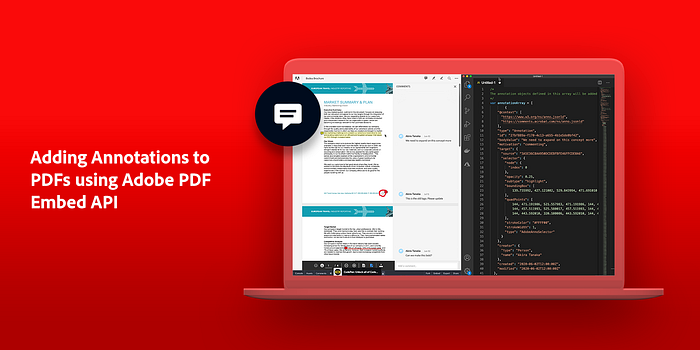
Have you ever wanted to markup a PDF file interactively with your team the same way you can in Microsoft Office 365 or Google Docs? Well, developers can now integrate that capability directly into their existing content management systems. Adobe added an annotations API to the PDF Embed API to allow you to control annotations in your PDFs.
The concepts in this article build on the core functionality of the PDF Embed API. If you are not familiar with the PDF Embed API, check out this article to get you started.
The Annotation API supports a variety of markup features including:
- Programmatic importing
- Exporting sticky notes
- Creating
- Deleting
- Updating
- Underlines
- Highlights
- Virtual ink
This allows developers to store and manage the PDF separately from the annotations and then use the Embed API to bring the PDF and any annotations together into a single view. By integrating this with a content management system, developers can create a system where comments and review cycles are highly managed. You would be able to specify:
- Which users can comment.
- Which comments are visible to different groups of participants.
- Which comments can be deleted or edited and by whom.
You are only limited by your own imagination. All the necessary events and callbacks are in the Annotation API to create any kind of review service you will need. You can see it in action at this CodePen.
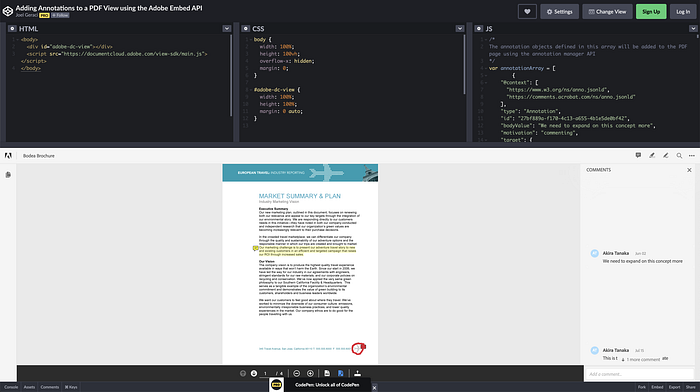
One important not: In this article, we will create annotations from scratch, but the Annotation API can also read and import annotations from existing PDF files.
Annotation Basics
Before we get started with the basics, there are a few important things to understand:
- When you create an annotation of a page, multiple quadrilaterals are defined to make up a single annotation such as a highlight that spans multiple lines of text.
- PDF annotations sit on top of the page content, they are not defined inline with the text. In fact, they have no relationship to the text other than occupying the same geographic space on the page. This means you can’t search for the word “company” and add a highlight based on those search results. Instead, you need to search for the word, discover it is coordinates on the page, then construct an annotation that uses the same coordinates.
The PDF Coordinate System
If you are used to working with
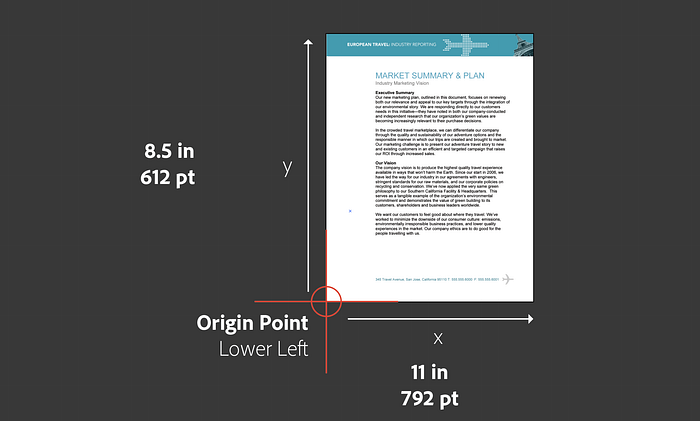
- Historically PDF came from print, which means it doesn’t use pixels as unit of measurement. Instead, it uses 72 points for every inch on the page. So, if we do the math, an 8.5 in x 11-inch page is 612 pts x 792 pts.
- The origin is not the top-left corner like in HTML. Instead, it is the lower-left corner. .
Annotation Geometry
Each annotation will have two of three properties that will be used to draw it on the page, the boundingBox, and either a set of quadPoints or an inkList. The boundingBox defines a rectangle that completely surrounds the annotation. It determines the hit box for the mouse. Regardless of the annotation content, mouse events that occur within the bounding box will trigger a callback if registered. The other two properties are drawing instructions.
Join Medium for free to get updates from this writer.
Remember me for faster sign in
The quadPoints property is an array of float values that define the quadrilaterals that make up a single annotation. In the image below, the three highlighted lines are represented in the quadPoints property as 24 values. When the annotation is selected in the embedded viewer, you can easily see the quadrilaterals.
The coordinates for each quadrilateral are given in the order x1 y1 x2 y2 x3 y3 x4 y4 specifying the quadrilateral’s four vertices in counterclockwise order. The three quadrilaterals are then combined into a single array. For clarity, I have broken the array into three lines, one for each highlighted line.
The inkList is like quadPoints in that it uses vertices. However, the inkList is an array of arrays where each item in the outer array is a two-element array representing a vertex, as point, that the embedded viewer uses to paint the annotation. A very, very, small inkList might look like this:
Annotation Binding
To begin populating the PDF view with annotations, the metaData property of the previewFile object must have an id. That id must be used as the source property of the target in each annotation object. This binds the annotation to the document.
Annotations can also be created in reply to another annotation, in which case, the target property is set to the annotation that it is in response to. See the documentation for further details.
Getting Started with the Annotations API
The challenge of adding annotations to a page is in generating the quadPoints and the inkList so that the annotation and the relevant text or image are visually associated with each other. But after that, it’s easy. The addAnnotations method accepts the array of annotation objects and then renders them on the page. The single line implementation is below.
Once the annotations are drawn, the user can interact with them just like annotations that they drew themselves.
Concluding thoughts
Adding annotations to the page is just the first step of creating a real-time collaboration environment using the PDF Embed API. In another article I will cover how to use annotation events to control interactivity and capture new comments in your repository. Stay tuned!