Back in the day, my old boss used to have everyone pile paperwork on their desk to review and sign off on the paperwork. The stack would pile up and wait for him to get into the office. Getting paperwork approved and signed could be a miracle.
These days, all of my time interacting with my team is inside of Microsoft Teams. It has become one of those applications that I have open at all times, kind of like Microsoft Outlook or your web browser has been for years. I want to work at the speed of text rather than email.
Often, I am chasing after my manager to get a sign-off or a signature on a document. My email ends up getting lost in their inbox. I am waiting to get their signature before moving forward on a project.
Adobe Sign for Microsoft Teams has been available to allow you to send agreements and track them in real-time. Microsoft has now integrated Adobe Sign directly into Microsoft Approvals to make it easier than ever to capture e-signatures.
In this article, let’s break down some of the great new things you can do with Adobe Sign in Microsoft Teams Approvals.
No app installation is required.
The first benefit of Adobe Sign in Microsoft Teams is that you don’t have to install an app to take advantage of Adobe Sign; it’s built into Approvals.
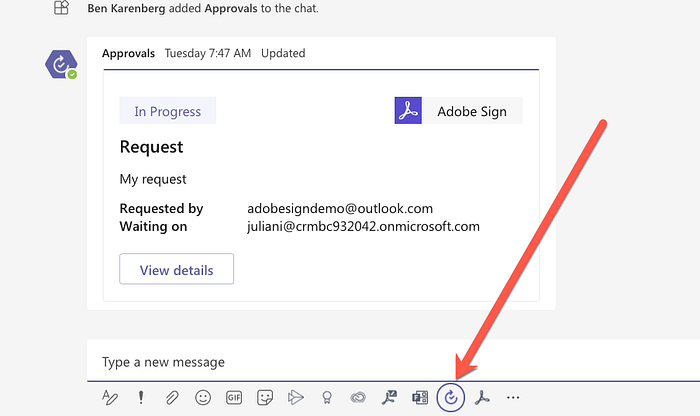
To get started, create an Approval by clicking the “Approvals” Message Extension.
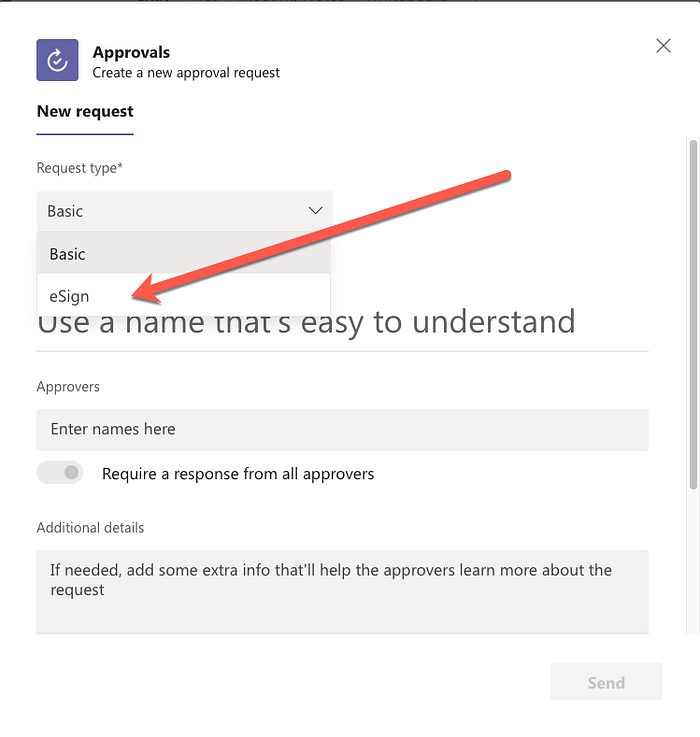
In the Approvals dialog, select the Request type and select eSign.
When you do that, it will ask you to either sign in with your Adobe Sign account or create a new trial.
PRO TIP: In the rare instance where the login for Adobe Sign is tied to a different email address than your business email associated with Microsoft Teams, your notifications may not work. For this reason, it is best to have an email address that is the same as the one you are logged into Microsoft Teams. Otherwise, your notifications will not work.
Send documents for approval
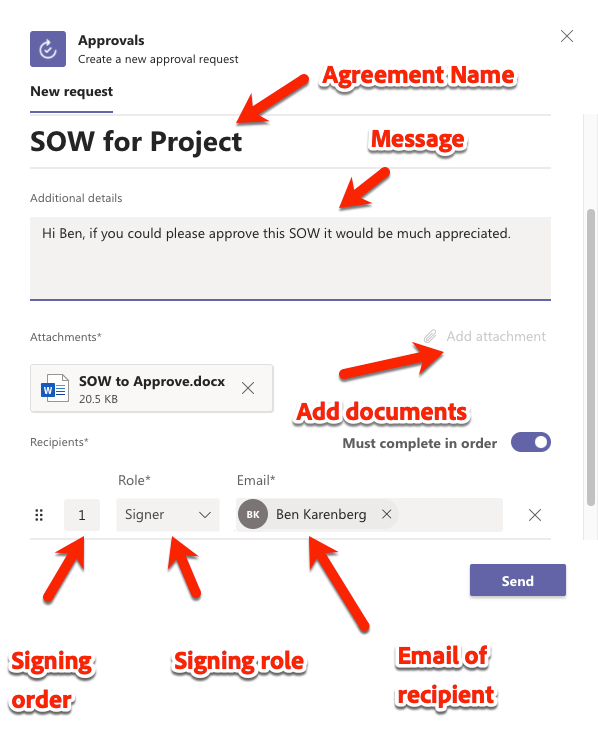
Once logged in, you can choose who you want to send the agreement to, the documents you wish to include, the signing order, the signing role, and email address just as you would from Adobe Sign web UI.
Agreement Name and Message will be the name of the document to approve. It is also the name of the agreement in Adobe Sign and will show in Adobe Sign emails.
At this time, you must upload the file from your computer. The document(s) you upload can be in your standard document formats, such as Word, Excel, PPTX, or PDF.
The signing roles include Signer and Approver. When you use Approver, the recipient does not need to sign; they can track their approval. This role is beneficial when you want to track that someone approved the document, but there isn’t a specific place for them to sign.
When you specify the email address, it can look up users within your organization to don’t need to remember their email addresses. The signer does not have to be within your organization. For recipients, they will receive a notification through approvals and an email.
When you are ready to send your document, you can hit the send button. Adobe Sign will take care of getting the document to a person to approve or sign.
Tagging your documents
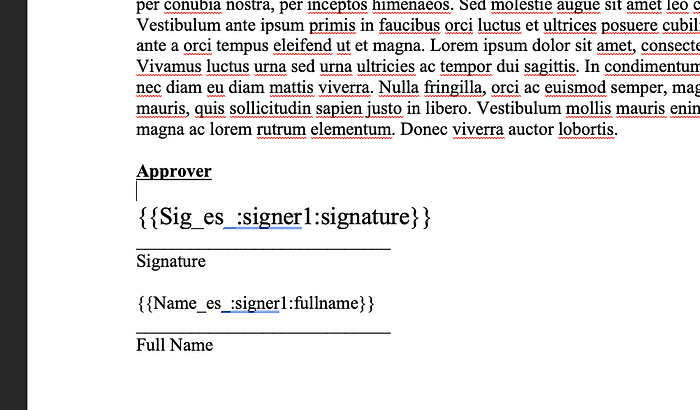
For those familiar with sending agreements through Adobe Sign web UI, you will not see the tagging UI to drag and drop your fields. Microsoft did not include this as part of the integration. The best way to tag your document this way is to use Adobe Sign text tags to place your signature fields where you want them.
Get Ben Vanderberg’s stories in your inbox
Join Medium for free to get updates from this writer.
Remember me for faster sign in
If you want to learn more about tagging documents, a good session from Adobe MAX helps walk you through how to organize your documents in different formats like Adobe InDesign, Word, or PDF.
Track documents in conversation and Approvals
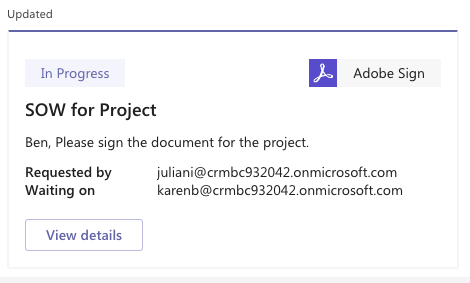
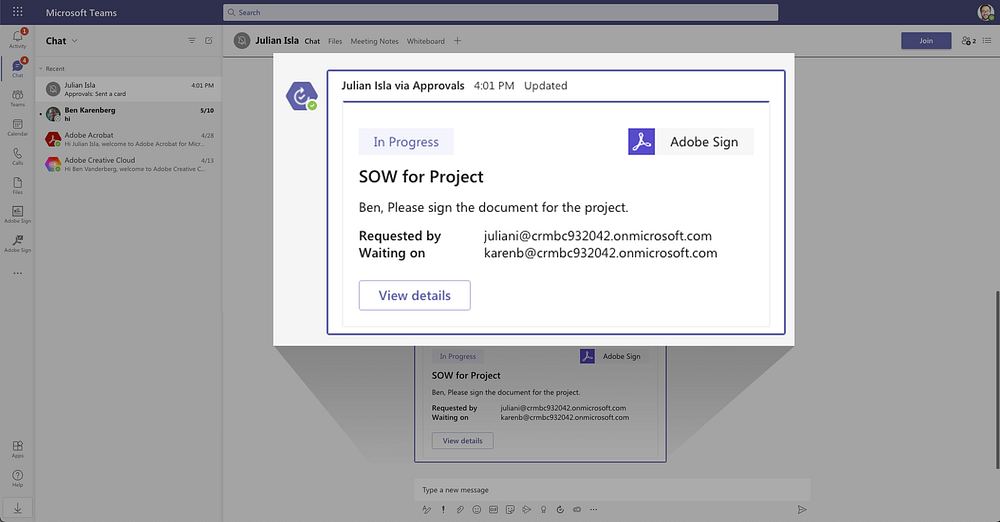
When you send the document, a card will get published in the conversation you are in, which shows the updates — this card updates in real-time when documents get signed.
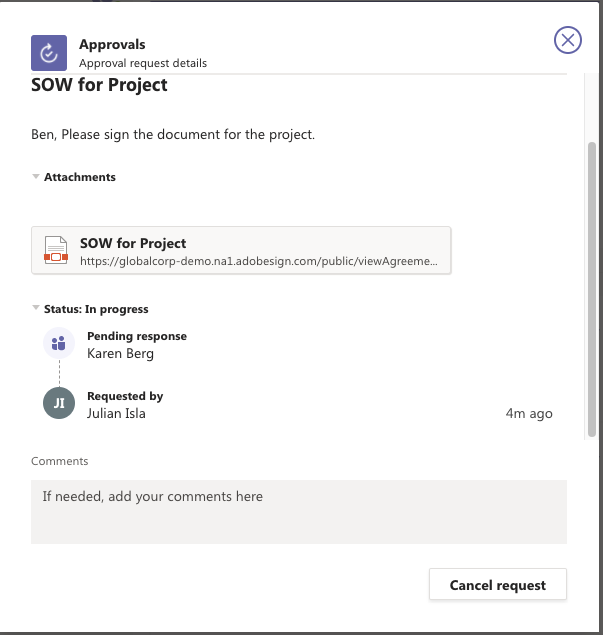
When you click on View Details, it will give you a view of where the document is in the cycle. You can also Cancel the request to withdraw the document from getting signed.
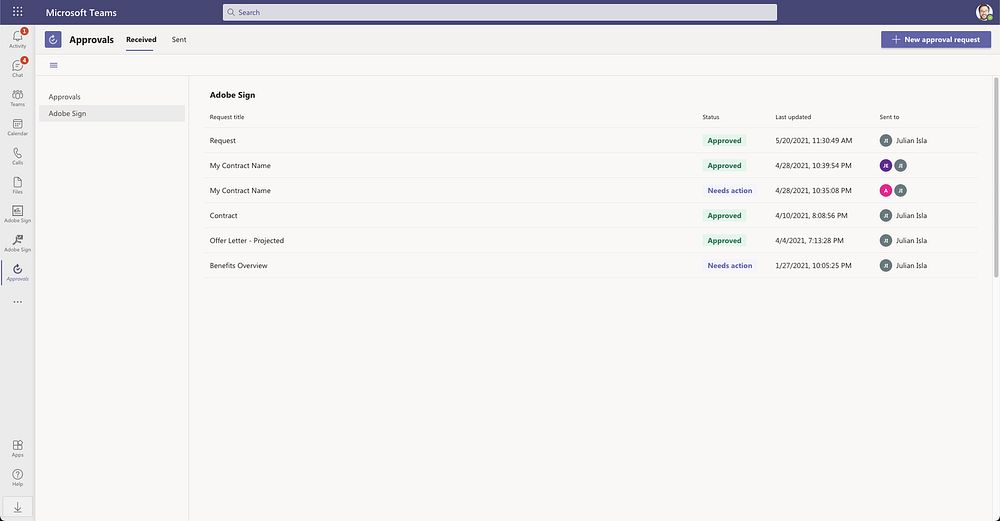
Inside of Approvals, you will see in the sidebar Adobe Sign that you can track all of your agreements. This list gives you one clear view to see which documents are waiting for your approval and action. This dashboard will also show agreements sent from Adobe Sign outside of Microsoft Teams.
Notifications and signing
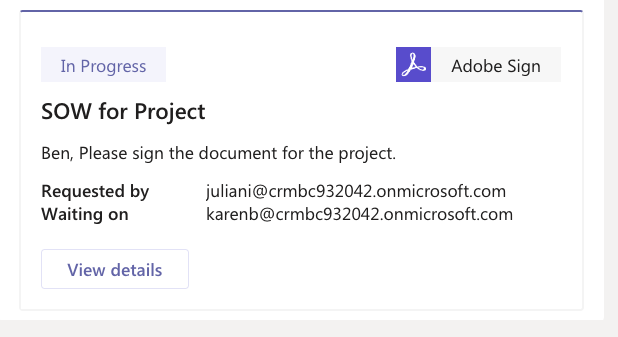
As the signer, Adobe Sign allows you to sign directly from the conversation that someone sends you the Approval. As the sender, you can see the status of the approval from the message card and view details.
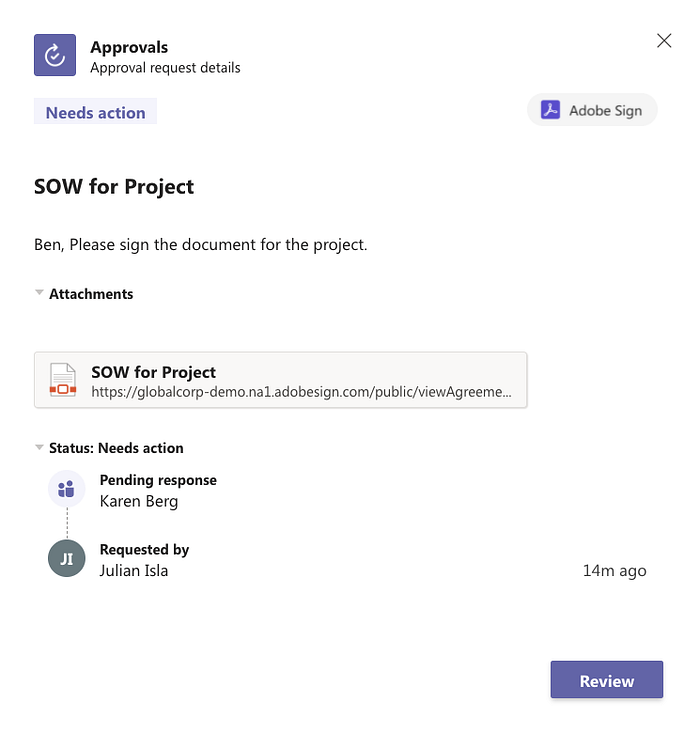
When you click View Details, you will see a Review button if you are the current signer. When you click that, it will prompt you to sign within your web browser. You can then sign your document quickly. You can also do the same from the Approvals list, so you can easily take action on the things waiting for your approval.
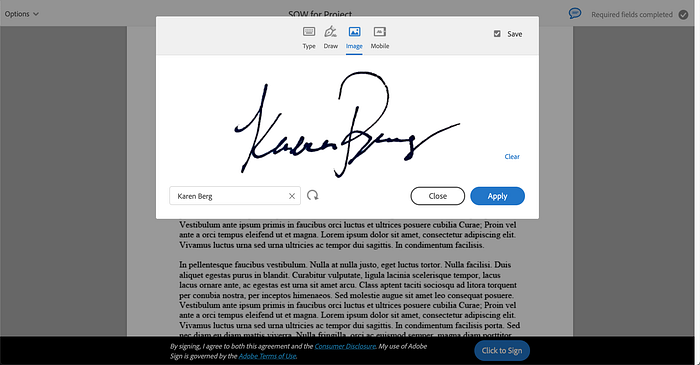
If your signer isn’t in your org or not logged into Microsoft Teams, they will receive an email to click to view and sign. No matter where the document is signed, the cards and the status in Approvals will get automatically updated.
For more advanced scenarios
Adobe Sign in Approvals makes it easy to get documents signed in just a few steps. However, you can use a few other tools to make the most out of Adobe Sign in Microsoft Teams.
Send agreements with Adobe Sign for Microsoft Teams
Adobe Sign for Microsoft Teams is an app and Microsoft Teams that allows you to send agreements and track directly inside Microsoft Teams. If you are familiar with Adobe Sign web UI and want to use some advanced functionality like identity verification methods, passwords, reminders, library templates, or drag and drop fields on documents, Adobe Sign for Microsoft Teams is an excellent addition to Microsoft Teams.
In addition, coming soon to Adobe Sign for Microsoft Teams is Live Sign, which allows you to host and witness e-signatures while in a video meeting.
Annotate and review documents with Adobe Acrobat for Microsoft Teams
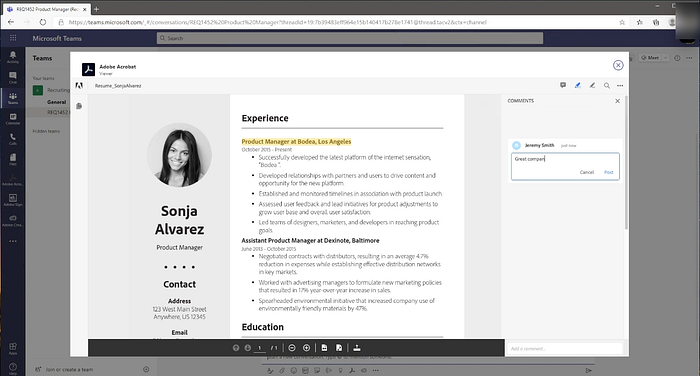
If you want to annotate and collaborate on your PDFs before routing it for signature, have a look at Adobe Acrobat for Microsoft Teams, which allows you to share PDFs in Microsoft Teams and real-time add comments and annotations on your PDF. Acrobat for Teams is great for getting feedback on documents sending documents for signature.
Store documents automatically using Adobe Sign and Microsoft Power Automate
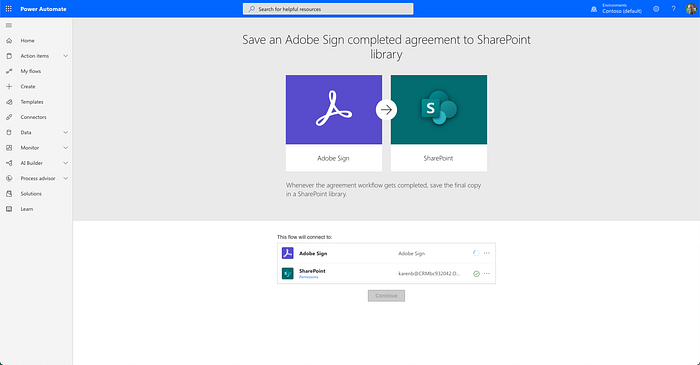
Whether you send your documents through Adobe Sign or using Approvals, you may want to automatically store those in a specific location after they are signed. Adobe Sign for Microsoft Power Automate allows you to create flows to do that easily. Adobe also has various other connectors for Power Automate, including Adobe PDF Tools for document automation and Adobe Creative Cloud. I also wrote an article helping you learn how to store documents in SharePoint automatically.
Final Thoughts
Having the ability to capture signatures in Microsoft Teams brings the tools to collaborate with my colleagues and customers every day. It is an excellent example of closely Adobe and Microsoft are working and developing together to streamline workplace productivity in this digital-first world.
Adobe Acrobat for Teams: Making Collaboration Effortless
See how you can collaborate on PDFs directly inside of Microsoft Teams with Adobe Acrobat for Microsoft Teams.
medium.com
Push Adobe Sign PDF Agreements to Microsoft SharePoint Automatically
How to import signed agreements into SharePoint using Microsoft Flow
medium.com
Use Bots to Get Adobe Sign Updates with Microsoft Teams
Using Adobe Sign for Microsoft Teams to check the status of processes, documents, and more.
medium.com
Creating Microsoft PowerApps with Adobe Sign
How to integrate Adobe Sign into your Microsoft PowerApp.
medium.com