Back in March, we announced the release of our PDF Services SDK, a set of tools that allow you to create PDFs, export them into different formats, OCR documents, and more. This month, we have a few new announcements to help with your automated PDF document processes.
New name: PDF Embed and PDF Services
Previously, our services were called Adobe Document Cloud SDK. Underneath this umbrella, we had View SDK and Services SDK. In order to help better clarify the integral relationship of these services to the PDF standard and make it easier to understand their functions, we have provided new names:
- Adobe Document Services The umbrella term for all of our PDF-related cloud services.
- PDF Embed APIFormerly View SDK, the client-side PDF viewing services that allow you to embed PDF views into your web applications.
- PDF Services APIFormerly Services SDK, these services allow you to run actions on your PDFs, including create, export, etc. These are available with a number of SDKs for NodeJS, Java, and .NET.
What’s new in PDF Embed
Last month, we provided a silent release of a number of new features for PDF Embed that allow you greater APIs to control and get information from the viewer.
Lightbox view

PDF Embed has had the ability for you to use different embed modes for viewing PDFs within your web apps. Lightbox now allows you to have PDFs displayed over your webpage.
It only requires a minor adjustment to your code. For more information, have a look at the PDF Embed Demo which allows you to create your embed code.
Read XMP metadata
XMP metadata is an ISO standard that allows you to embed metadata in PDFs as well as other formats such as images, PSDs, video files, and others. Most commonly, you may have seen XMP metadata used as part of images for keywords, copyright information, and descriptions written in tools like Adobe Lightroom, Photoshop, Bridge, and other applications. PDFs also support XMP metadata so information about your document, such as title, author, description, copyright status, can all be embedded into the document. This XMP metadata is often used by digital asset management systems such as Adobe Experience Manager. PDF Embed now provides an API that allows you to read the PDF metadata so that you can read and display that information on your web page, so you don’t have to use a separate service to get this document information.
Get Ben Vanderberg’s stories in your inbox
Join Medium for free to get updates from this writer.
Remember me for faster sign in
To get started with this, have a look at the documentation and see getXMPMetadata.
Annotations API
PDF Embed now provides you a comprehensive API to allow you to read annotations in a PDF, create new ones, edit them, or change settings such as colors. The annotations API supports programmatic importing, creating, deleting, updating, and exporting both comments (sticky notes) and other types of markup such as underlines and highlight.
In addition, you can use event listeners to extend the user interface as part of annotations. Events include:
- ANNOTATION_ADDED
- ANNOTATION_CLICKED
- ANNOTATION_UPDATED
- ANNOTATION_DELETED
- ANNOTATION_MOUSE_OVER
- ANNOTATION_MOUSE_OUT
- ANNOTATION_SELECTED
- ANNOTATION_UNSELECTED
- ANNOTATION_MODE_STARTED
- ANNOTATION_MODE_ENDED
Get selected content
You can now get the selected content from the viewer using the Viewer API. This means you can select text, then use the Viewer API to extract that and put into another format, such as creating a summary of notes from a PDF. You could even tie this in to extract information and put it into a database.
Set Cursor, Go to Location, Get Current Page, Set Page Zoom
You can also now control the interaction with the Viewer with functions such as setCursor(), resetCursor(), getCurrentPage(), getPageZoom(), goToLocation(), etc. which allow you to better guide how a person is interacting and viewing a PDF by having your app guide a person to the right place in the PDF.
New events
PDF Embed now has a bunch of new events that can be used for you to track how a reader interacts with the PDF viewer. This can include where they click, when they switch pages, when they mouse over or leave a document, when pages change. These all have a few key values:
- Gives you better insights into how readers are interacting with a PDF.
- Gives you more ways that you can trigger automatic events on a page based on these events.
New events include:
- PREVIEW_KEY_DOWN
- PREVIEW_PAGE_VIEWED_SCROLLED
- PREVIEW_DOCUMENT_CLICK
- PREVIEW_PAGE_CLICK
- PREVIEW_PAGE_DOUBLE_CLICK
- PREVIEW_PAGE_MOUSE_ENTER
- PREVIEW_PAGE_MOUSE_LEAVE
- CURRENT_ACTIVE_PAGE
- PREVIEW_SELECTION_END
- PREVIEW_ZOOM
- PAGES_IN_VIEW_CHANGE
Enable/Disable text selection
If you are using PDF Embed to render and show PDFs with sensitive information, it can be even more important to allow or disallow someone from copying text from a document. You can now control that using the enableTextSelection API in the Viewer API.
What’s new in PDF Services
Joining Create PDF, OCR, Export PDF, and Combine PDF are a lot of new PDF Services APIs. For those of you who use Adobe Acrobat, these might be very familiar to you and we are now making them as APIs.
Compress PDFs
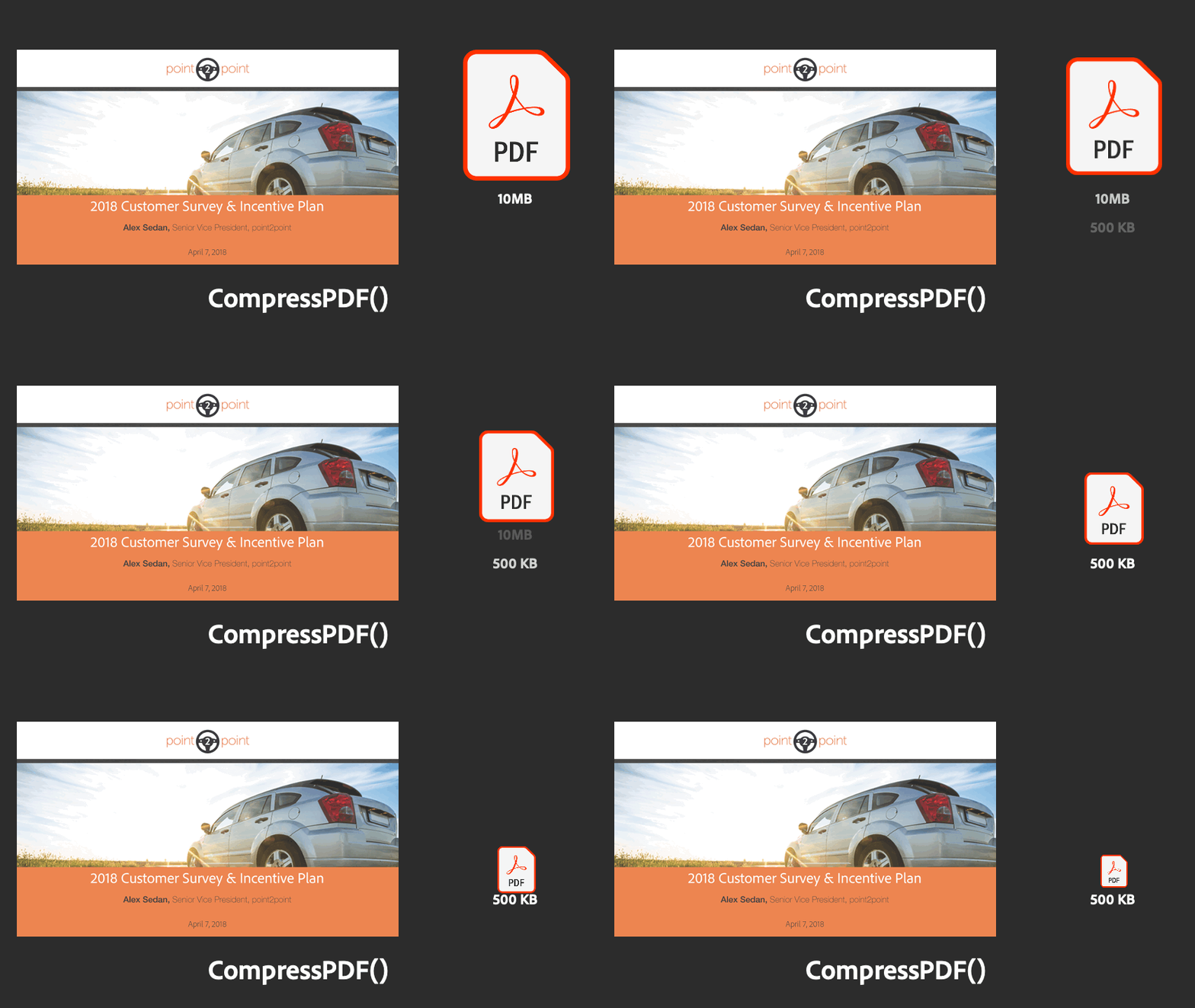
Compress PDFs to reduce the file size prior to performing workflow operations that use bandwidth or memory. Often PDFs can have giant images in them that aren’t well compressed. Compress service allows you to easily shrink them down into an optimized size.
Linearize PDFs
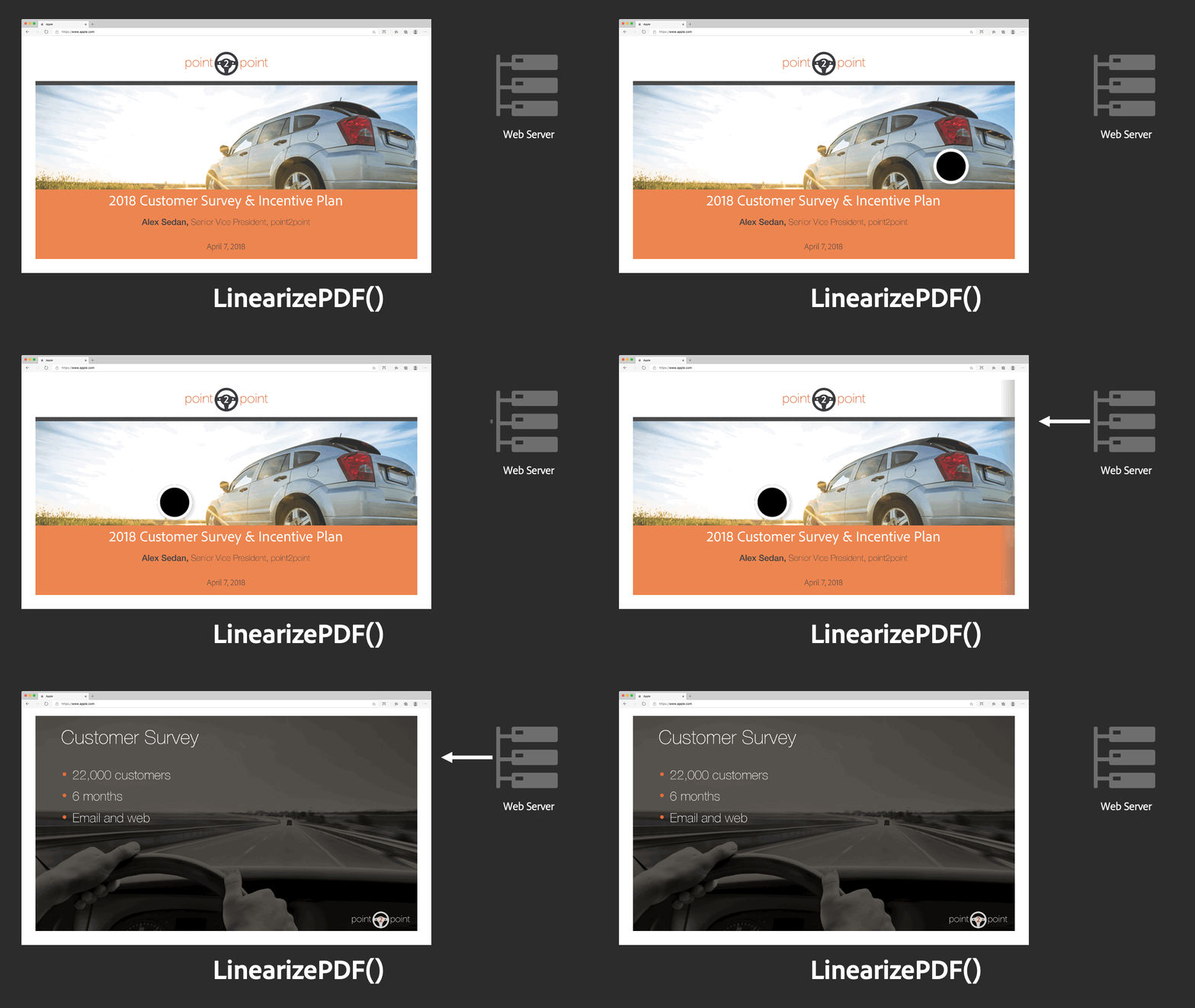
When viewing PDFs that are extremely large on the web, it is inefficient to have to download an entire PDF to view it. Fortunately, you can optimize PDFs for lazy-loading on-demand pages using Linearize PDFs.
Protect PDFs
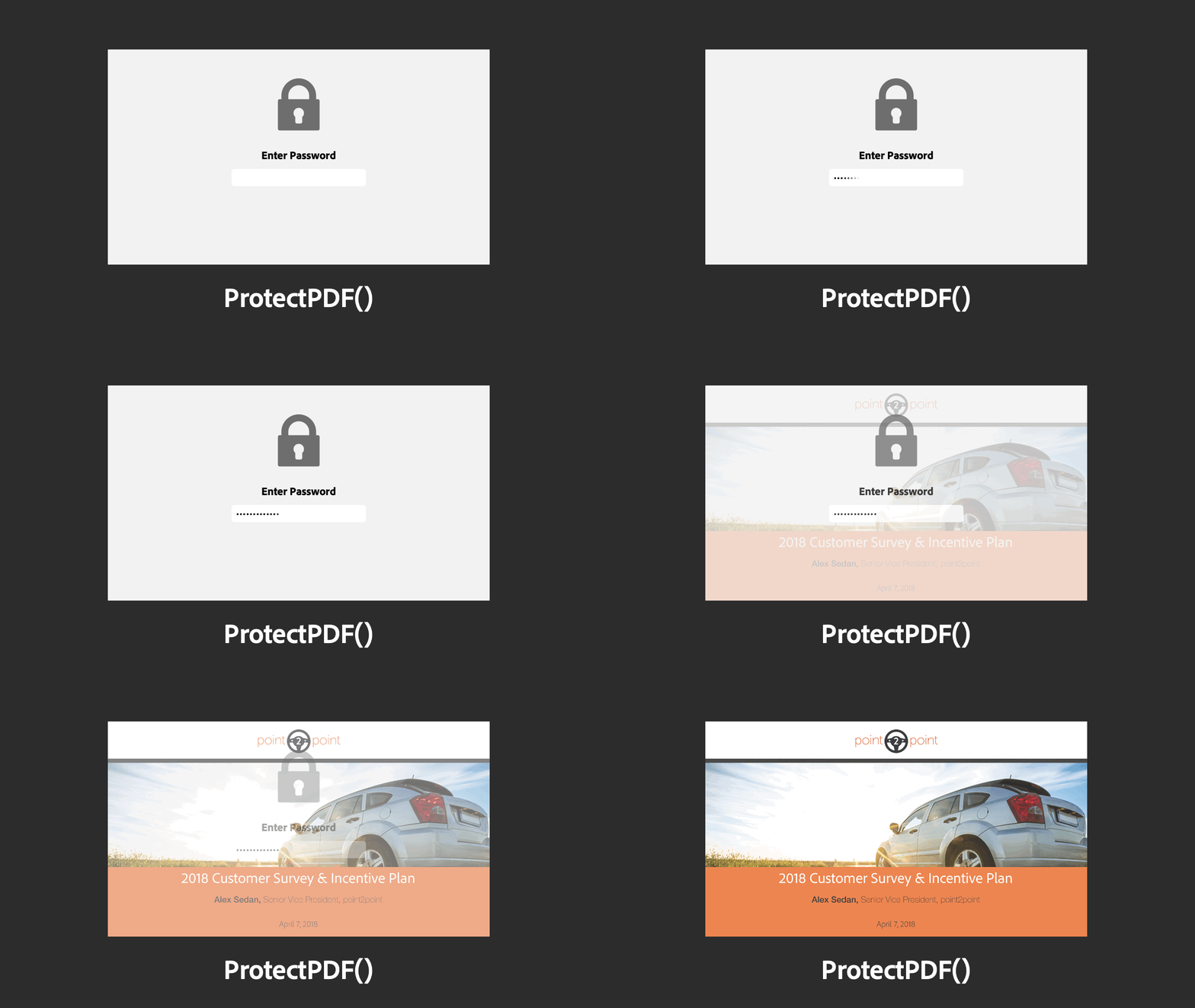
PDFs can have sensitive information in them. You can protect them with a password using the Protect PDF.
Replace Pages
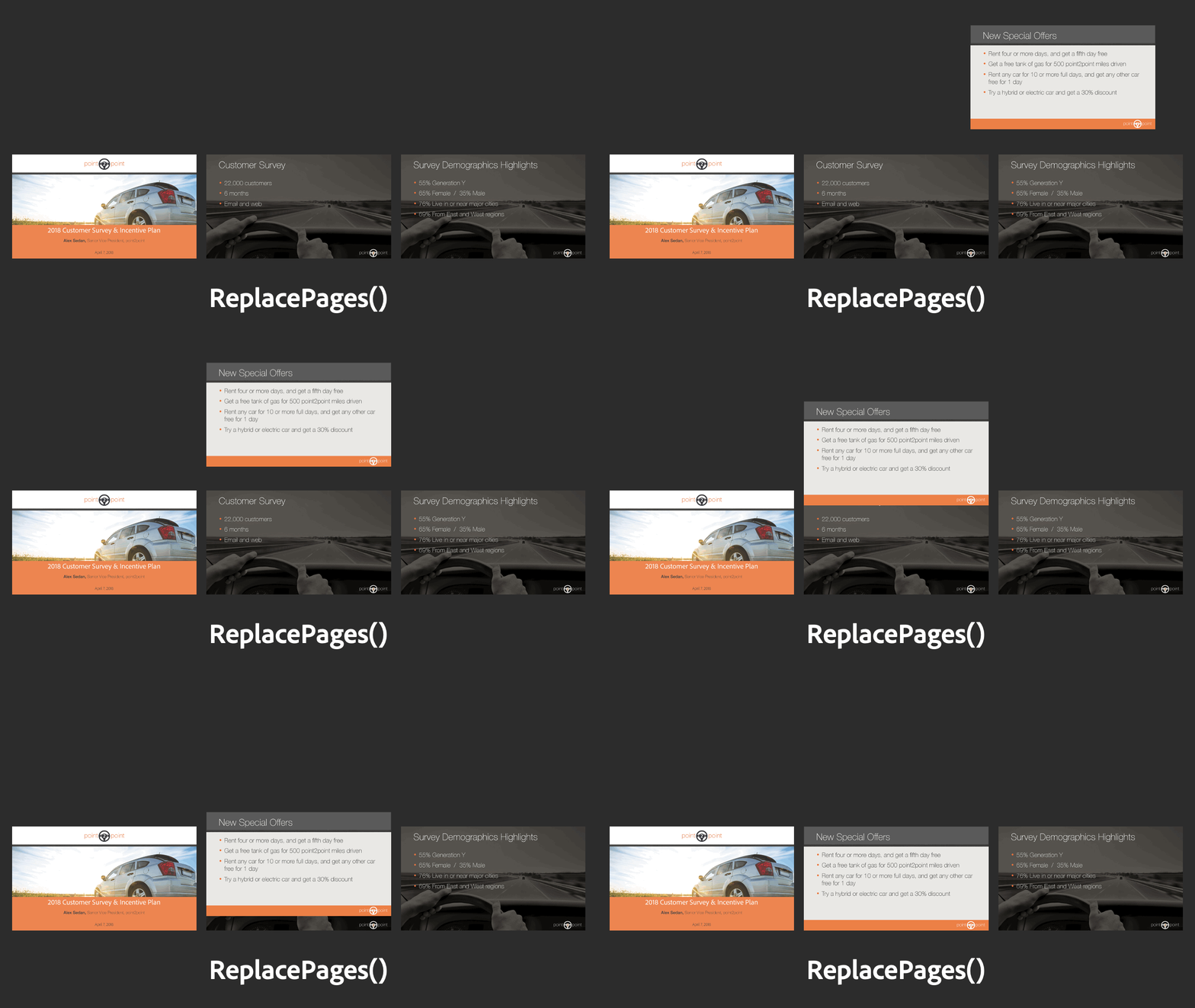
Have a PDF that needs one page updated? Replace Pages allows you to replace a specific page with a new one.
Insert Pages

Let’s say you have a presentation in PDF format and you would like to inject an additional page into the PDF presentation. With Insert Pages, you can insert the page into the document with ease.
Delete Pages
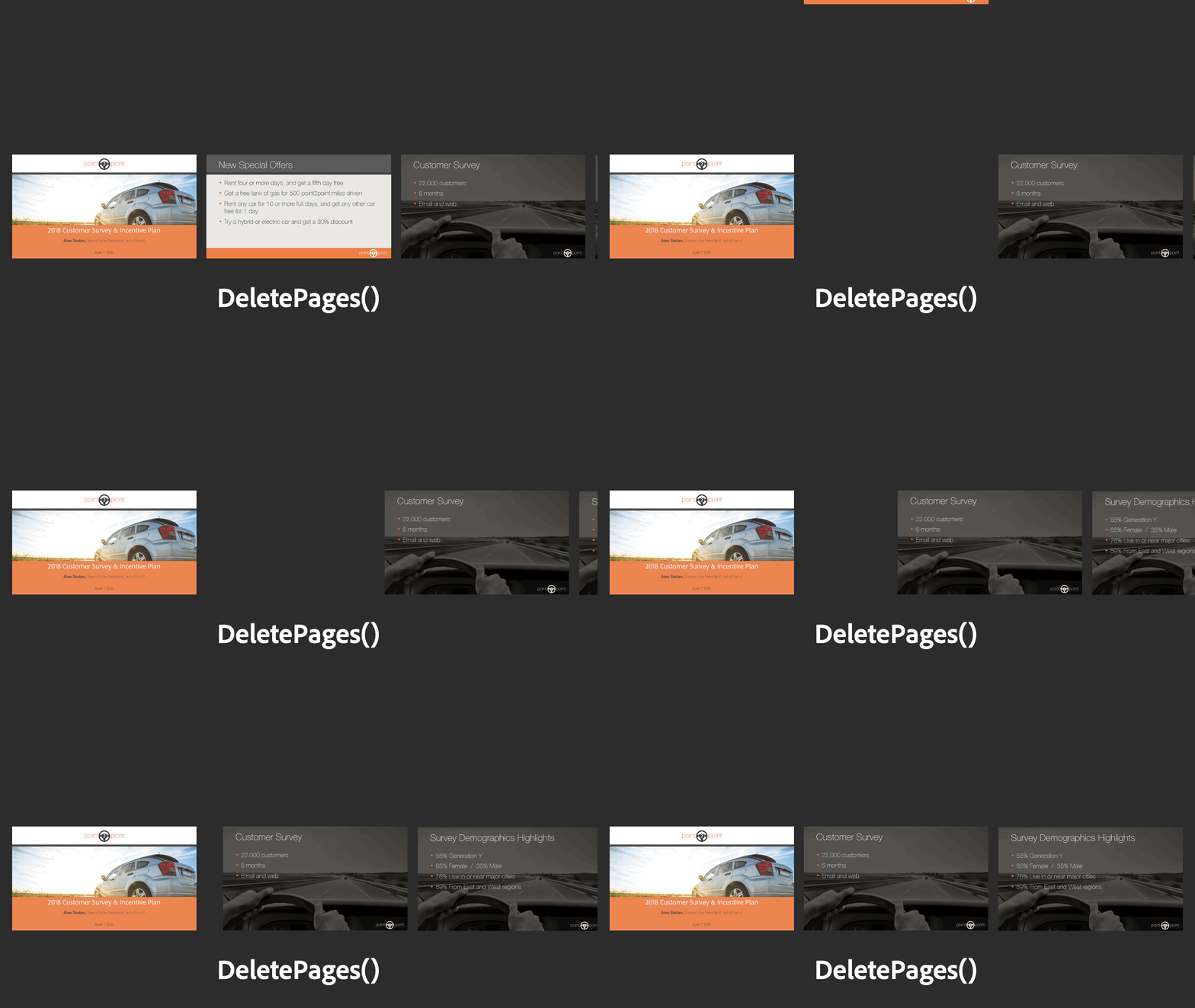
In a PDF, you might have certain pages that you want to remove. For example, maybe you don’t want to share all those extra slides at the back of a presentation in PDF format. Delete Pages allows you to easily remove those pages.
Reorder Pages

You might have a PDF, but the order of the pages are all mixed up. Using Reorder Pages, you can change the order of the pages in the PDF to make it right.
Rotate Pages

When documents are scanned, sometimes they aren’t in the right orientation. Rotate Pages allows you to rotate your pages to the right orientation.
Final thoughts
With this release, we are giving more tools to the hands of developers to make the next generation of digital transformation tools to make the world paperless. These days, with many more people working from home, the appetite for paperless tools is higher than ever. With Adobe Document Services, the opportunity is now to make the next killer app for paperless productivity.