One of the primary reasons that PDFs have become so ubiquitous is that it is so easy to take anything from any app and turn it into a PDF and know that it will look exactly as you intended. For web developers, though, they need tools to make it easier to use on the web.
Making sure that the document looks exactly as you originally intended has always been the vision of PDF from its founding. It’s for this reason PDF often holds legal weight for customers around the world and is as ubiquitous as paper is in the physical world.
For web developers, though, PDFs can sometimes be a struggle. While the PDF does display documents exactly as the author intended, web developers expect control, ease when incorporating into their designs, and expect to have the same analytics that they have grown accustomed to with web content.
So, what if you could:
- Get more data to understand how your visitors were viewing and interacting with your PDFs?
- Make PDF a first-class citizen in viewing experiences on the web?
In my previous post, I walked through how you can easily embed a PDF into any website using Adobe PDF Embed API (PDF Embed). In this post, I will walk-through how you can connect this viewer to Adobe Analytics, and how you can connect event listeners to whatever you want!
What You Will Need
- Adobe PDF Embed APIThis is entirely free. You can learn in just a few minutes how to get a Client ID and get started.
- Adobe Analytics optionalYou do not need Adobe Analytics for this, however if you are an Adobe Analytics customer, this is a great way to collect your analytics data on PDFs.
- JavaScript
Events Tracked
PDF Embed has a variety of different events that can be tracked within the embedded viewer. These can be used to:
- Track and understand visitor’s interest and behaviors while reading PDFs
- Extend the viewing experience by adding additional functionality such as chatbots or calls to action based on things like how long they spent on the page, how many pages they viewed, etc.
There are a variety of events available including:
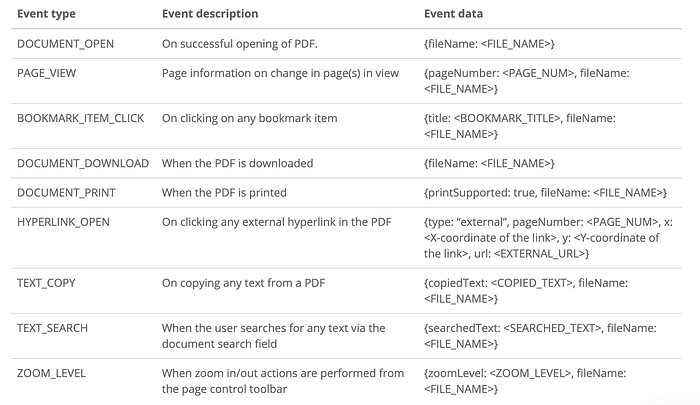
Check out examples on GitHub.
Connecting to Adobe Analytics
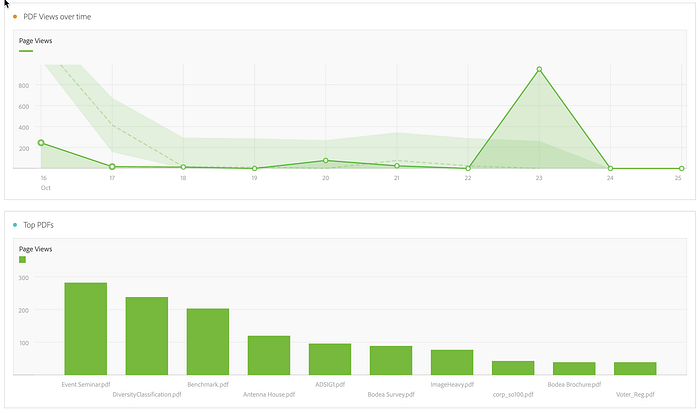
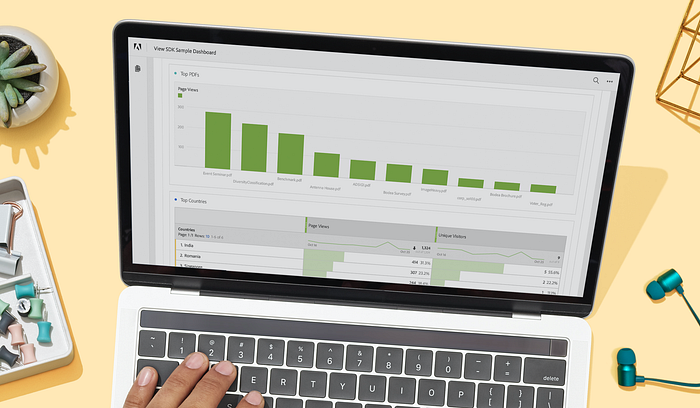
Are you a subscriber of Adobe Analytics? PDF Embed can push data easily into your Report Suite. All you will need is your reportSuiteId and you can create a dashboard to learn about your viewers. You can see instructions here on how to get more insights. You can also use the live demo to generate your embed viewer.
Get Ben Vanderberg’s stories in your inbox
Join Medium for free to get updates from this writer.
Remember me for faster sign in
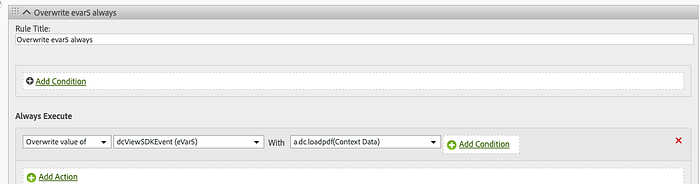
Once you have your reportSuiteId set, you will need to configure your Report Suite in Adobe Analytics to add your context variables to make sure they are associated with the appropriate event tags. When you read the instructions, you can set your context variables to each of the events listed:
- a.dc.zoomLevel
- a.dc.loadPDF
- a.dc.viewPage
- a.dc.download
- a.dc.search
- a.dc.bookmarkClicked
- a.dc.copyText
- a.dc.print
Using event listeners
Not an Adobe Analytics customer? Not a problem! You can still take advantage of PDF analytics by capturing all of the events from PDF Embed in JavaScript.
Let’s start with embedding a viewer into a webpage:
If you’re unsure how to create your Client ID, check out my post on how to quickly setup your viewer for the first time. It takes only a couple minutes. The Client ID is used to authenticate a domain. So if you use the code above locally in an HTML file, it will render, but if you host it on a web server, your Client ID must match the domain related to your Client ID or it will not render your PDF.
Below is a snippet of how, within your addEventListener function, you can add code to collect events that come from PDF Embed:
See the full snippet below to see all of the different events you can use as callbacks:
What you will see in the code is a switch that will list out each of the different events that are provided by PDF Embed. You can then use this code to push data into your own applications or analytics software, or trigger other events to occur on a page, such as prompt a paywall after you reach the second page, trigger to collect data from a person to create a lead, etc.
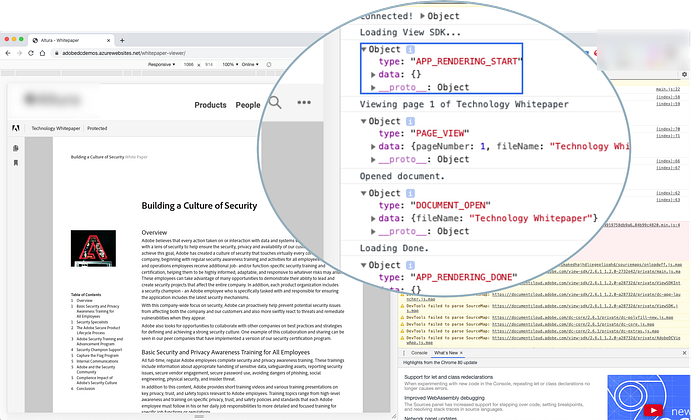
Once you add this code to your website, you will be able to use your Inspector to see the different outputs. You can then use these to push the data into whatever application you like!
Conclusion
PDF Embed provides greater control back to the web developer to easily manage the viewing experience and understand their visitors better. It provides developers more flexibility to extend PDF viewing experiences using their own web-native tools. Using integration with Adobe Analytics, it allows you to better understand how your content is being read and viewed so that it can inform your content creation.
Resources
- Adobe PDF Embed API
- Adobe PDF Embed Code with Event Listeners
- Adobe PDF Embed API Event Listeners