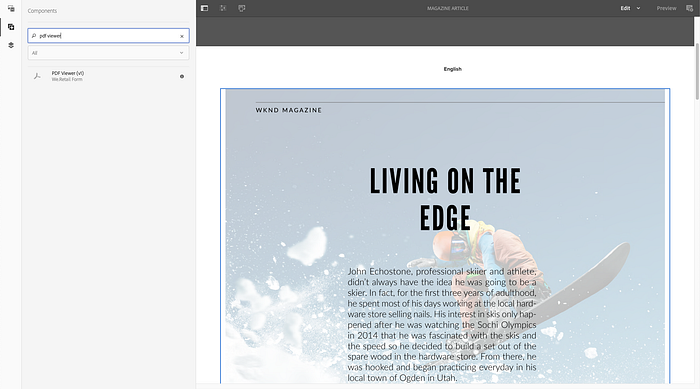
Content can come in a variety of formats in AEM. They could be images, videos, or even PDF documents. When it comes to PDFs, what is often the case is these PDFs are linked to and then rendered in the browser or downloaded to your computer, taking you away from the context and navigation of your own website. You also don’t get any insights into how they were interacting with PDFs other than downloading.
There are a lot of common scenarios where this is the case. For example, you might see white-papers, guides, contracts, documents. If you are using AEM to power a customer portal or an intranet, you could have documents specifically related to a certain person that you want to host online.
As part of AEM Core Components, there is now a new component called PDF Viewer, powered by Adobe PDF Embed API as part of Adobe Document Services. In a previous blog, I wrote in detail how you can take advantage of PDF Embed API. This makes it easy to incorporate it into your AEM pages.
PDF Viewer allows you to embed PDF views into a web page using simple drag and drop. The core component supports all of the embed modes supported as part of PDF Embed API including Full Window, Inline, and Sized Container for use with all sorts of PDF content. As a core component, this means that this can also be extended and customized by AEM developers to meet your specific needs.
In this article, let’s learn more about how we can use PDF Viewer to embed viewing experiences into our webpages.
Requirements
- AEM 6.5
- AEM Core Components 2.10+
- PDF Embed API Client ID
For this article, we are going to assume you are running AEM on a local instance (hence using localhost) but this will work with any installed AEM instance.
Install Packages
- Download the latest core components from here.
- In AEM, navigate to Settings > Deployment Packages.
- Upload the Core Components package.
How to Configure a Context Aware Configuration
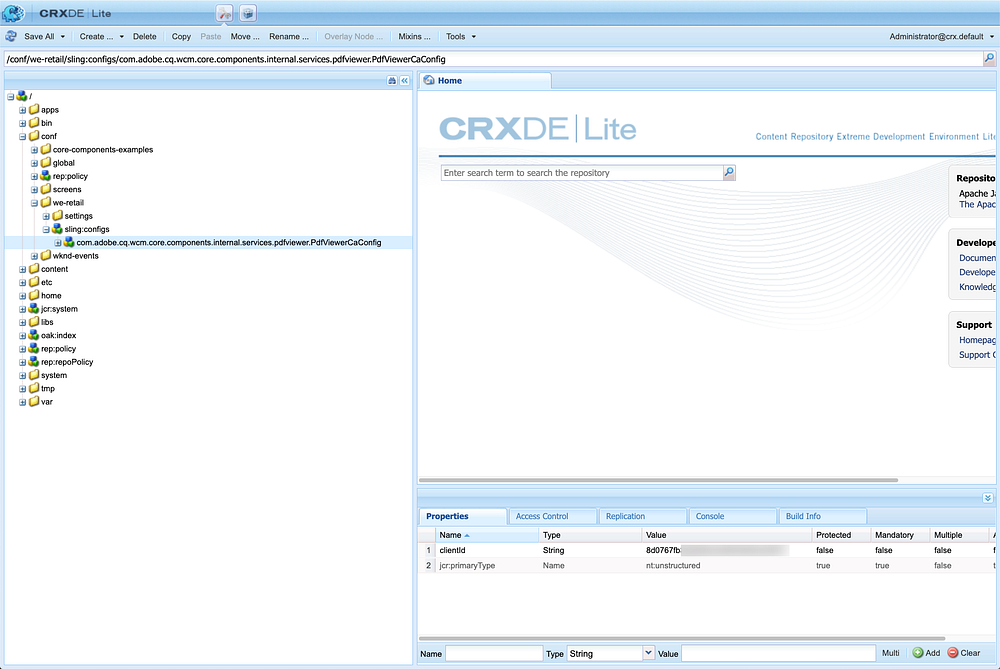
Once you have installed the packages, you will need to configure your Context Aware Configuration. The Context Aware Configuration allows you to set which PDF Embed API Client ID, Analytics Report Suite will be set for a specific site.
Join Medium for free to get updates from this writer.
Remember me for faster sign in
Create a new Context Aware Configuration.
- In AEM, go to CRX.
- Navigate to /conf/
- Create a new node called sling:configs.
- As a sub-node of sling:configs, create a new node called com.adobe.cq.wcm.core.components.internal.services.pdfviewer.PdfViewerCaConfig
- You will need to set the following parameters:clientId - Required - https://www.adobe.com/go/dcsdks_credentialsreportSuiteId - Adobe Analytics ID
Using Adobe Analytics will require you to have a matching reportSuiteId as the one you have configured in AEM Sites header or in Adobe Launch. For more information on how to configure Adobe Analytics with PDF Embed API, see the documentation.
Add Core Component to Your App
Next, we will want to extend our core component and add it to your own app.
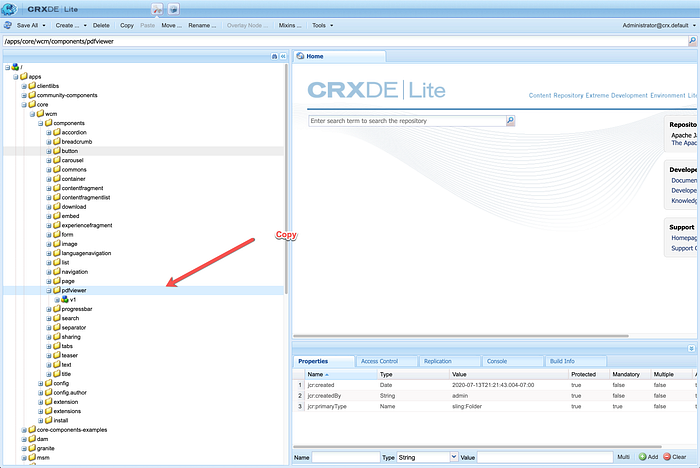
- In AEM, go to CRX.
- Navigate to /apps/core/wcm/components/pdfviewer.
- Copy this folder.
- Add it to your own app. Ex. /apps/weretail/components.
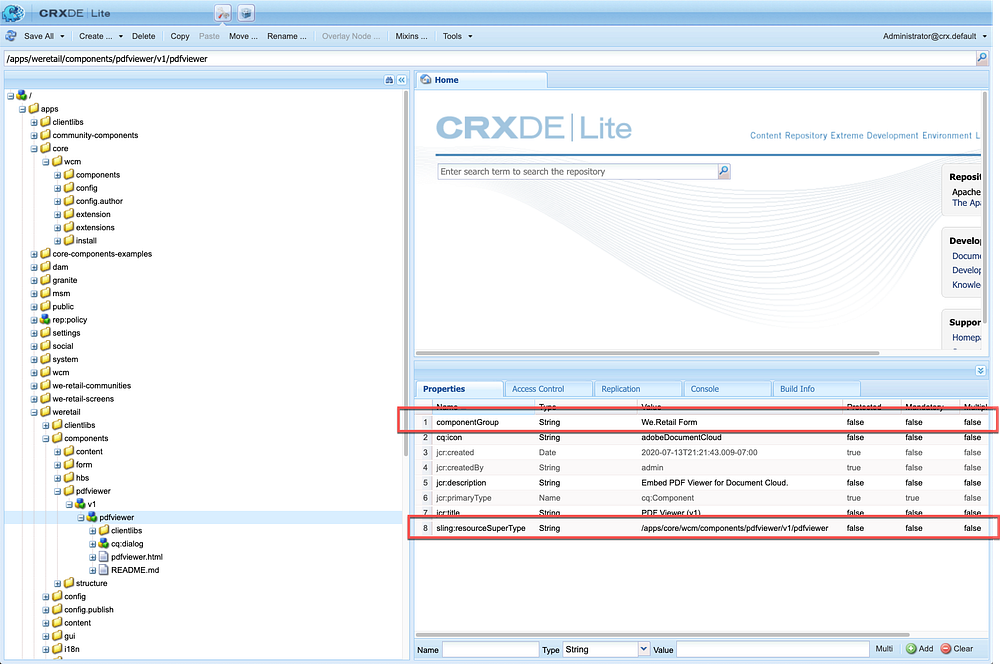
- Navigate into the pdfviewer component.Ex. /apps/weretail/components/pdfviewer/v1/pdfviewer
- Add or edit your componentGroup property to place it in your desired Component Group. Ex. We.Retail Form
- Add or edit your sling:resourceSuperType field to map to the core component. Ex. /apps/core/wcm/components/pdfviewer/v1/pdfviewer
Add PDF Viewer to Your Template
You will need to add the PDF Viewer component into your template, which you can do through your Template Polices.
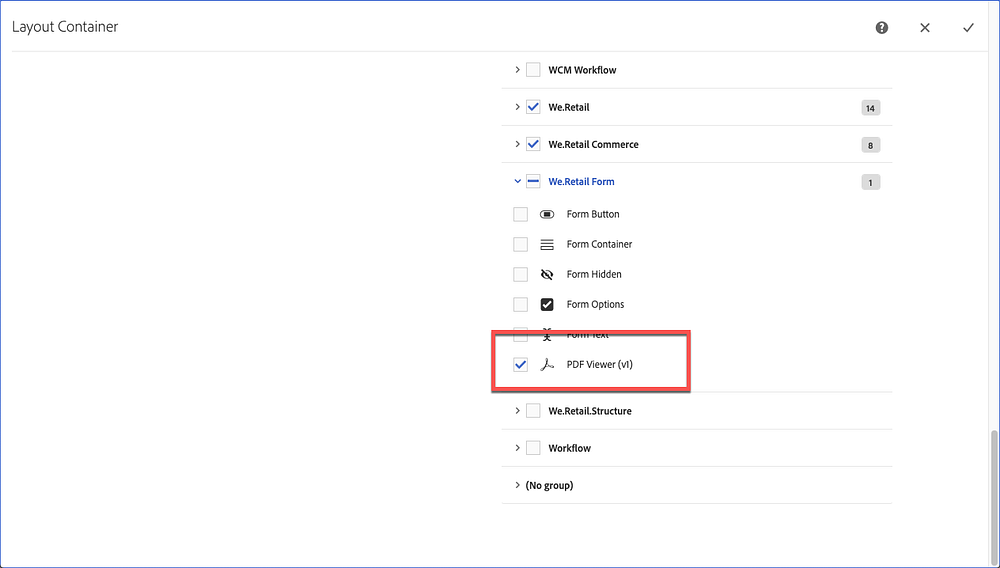
Add and Configure the PDF Viewer Component
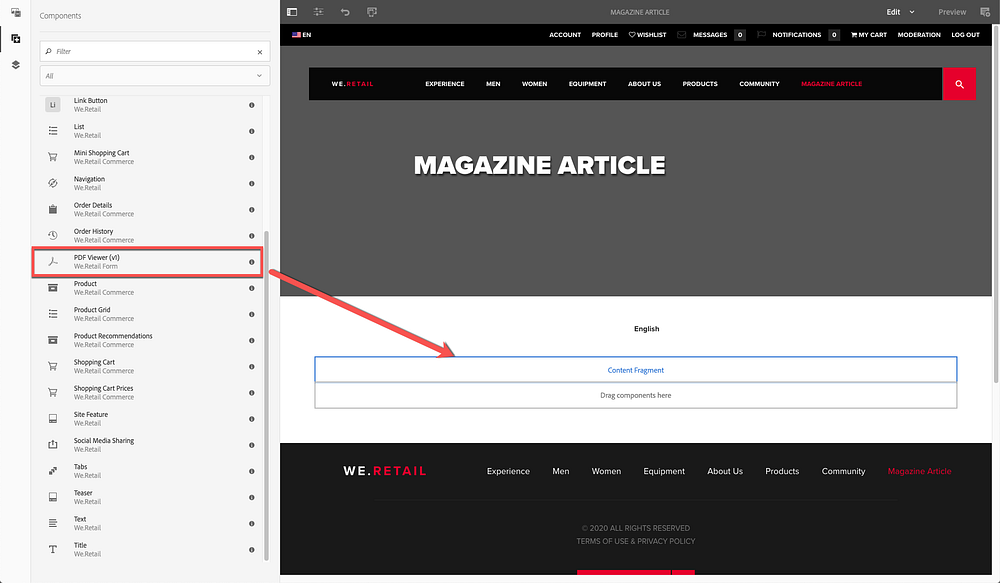
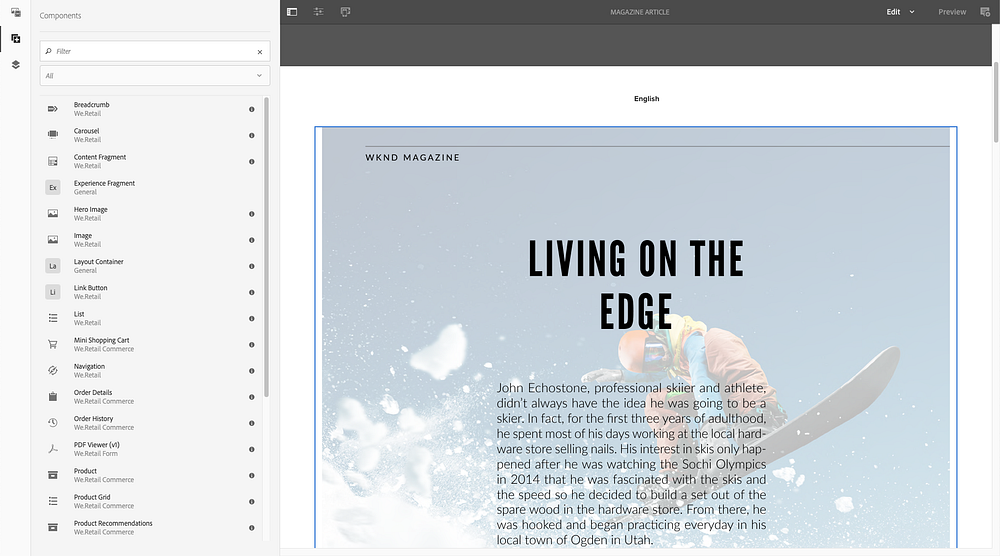
- Drag and drop the PDF Viewer component into your page.
- Click to Configure the component.
Configuration
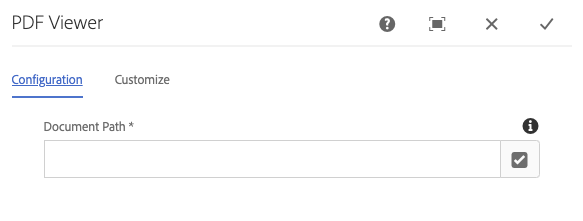
Document Path allows you to set your document path as an absolute URL or AEM Assets path.
Customize
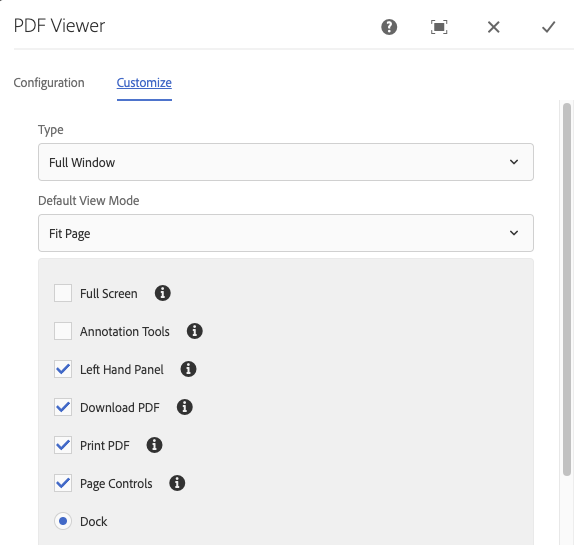
PDF Viewer can be configured to have a variety of different viewing modes:
- TypeWhether you want to show as Full Window, Inline, or Sized Container.
- Default View ModeWhether to fit to page or fit to width.
- Full Screen
- Annotation ToolsWhether the annotation tools will be available for customers to add annotations and comments to the PDF.
- Left Hand PanelWhether the left hand panel which shows page previews and bookmarks is shown.
- Download PDFWhether the viewer has the ability to download a PDF copy of the document.
- Print PDFWhether the viewer has the ability to print a copy of the document.
- Page ControlsToggle to display page controls.
- DockToggle view of the dock at the bottom of the viewer.
Previewing Your Configuration
To preview, you can click on Preview in the top-right corner of your navigation bar. You may have to refresh your page in order to see the Viewer take effect.
Summary
PDF Viewer in AEM allows you to get greater insights into the PDFs hosted on your webpage by being able to get granular metrics, such as how long people spend on each page. It also allows you to mix your PDF views with the rest of your HTML content seamlessly.
If you would like to learn more about how you can extend this even more, have a look at the documentation to see how you can use things like JavaScript events to extend the viewing experience.