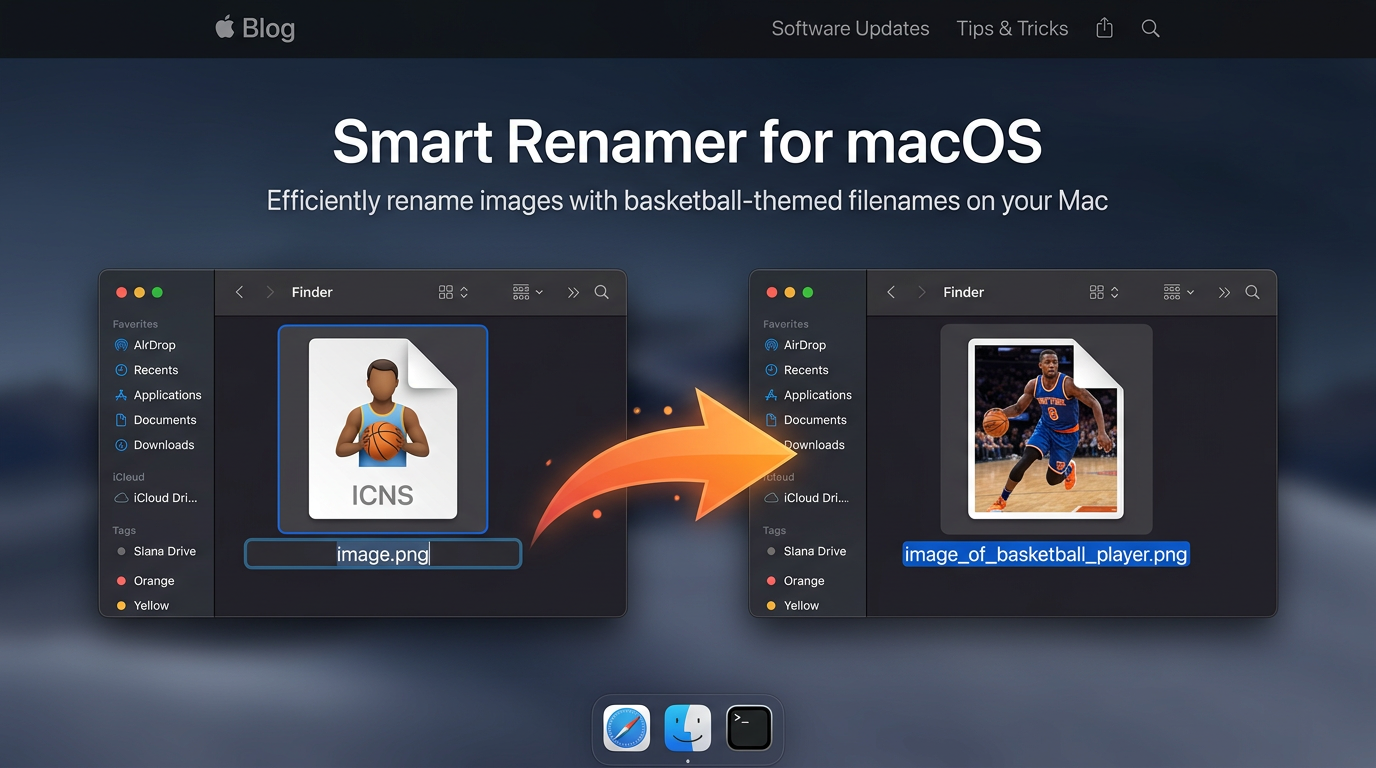
We’ve all got a Downloads folder full of files named IMG_4821.png or Untitled (3).png. Finding the one you need means opening each file and looking.
This Apple Shortcut fixes that. Select your images in Finder, run it, and each file is renamed to describe what’s in it, like man_in_suit_at_formal_event.png.
What it does
The Apple Shortcut takes the files you’ve selected in Finder and, for each one:
- Sends the image to Apple’s on-device Foundation Model using the
fmcommand-line tool. - Asks for a short description of 3 to 6 words.
- Turns that description into a clean, lowercase filename with underscores.
- Renames the file, keeping its original extension.
If two images get the same description, it adds a number to the end (_2, _3, and so on), so nothing gets overwritten. When it finishes, it reports how many files were renamed and lists any that failed.
What is fm?
fm is the Apple Foundation Models CLI, a command-line tool that comes with macOS 27. It lets you talk to the AI model Apple built into your Mac, straight from Terminal or from a script.
You give it a prompt, and optionally an image, and it prints a response:
fm respond --image photo.jpg --text "What is in this image?"Because it’s a normal command-line tool, you can use it from shell scripts, AppleScript, and Apple Shortcuts. That’s how this project works. The Apple Shortcut hands each image to fm and uses the answer as the new filename.
Why do it this way?
- The model is already on your Mac. There’s nothing to download, no API key to set up, and no separate app to install.
- It’s private and secure. The model runs on your machine, so your images are never uploaded to a server. That matters for screenshots, client work, or personal photos.
- It doesn’t cost you tokens. Renaming a folder of images with ChatGPT or Claude means uploading every file and spending your usage on a chore. This runs locally, so you can rename hundreds of files without using up either one.
Requirements
- macOS 27 or later. The
fmtool is part of macOS 27, so this won’t work on earlier versions. - Accepting the
fmterms. You need to agree to the Legal Notice & Terms once before the tool will work (see the next section).
One-time setup: accept the terms
Before the first run, open Terminal and run:
fm licenseThis shows the Legal Notice & Terms and lets you agree to them. If you skip this step, fm won’t return descriptions, and the Apple Shortcut will report that each file failed.
You only need to do this once.
Install the Apple Shortcut
- Open the link on your Mac: Rename Images with AI
- Click Add Shortcut in the Apple Shortcuts app.
- Run it once. macOS will ask whether the Apple Shortcut can control Finder and run a shell script. Allow both, since it needs them to read your selection and rename the files.
Add it to Finder’s Quick Actions
The best way to use this Apple Shortcut is straight from Finder’s right-click menu. Select your images, right-click, and choose Quick Actions → Smart Rename (or whatever you named your shortcut).
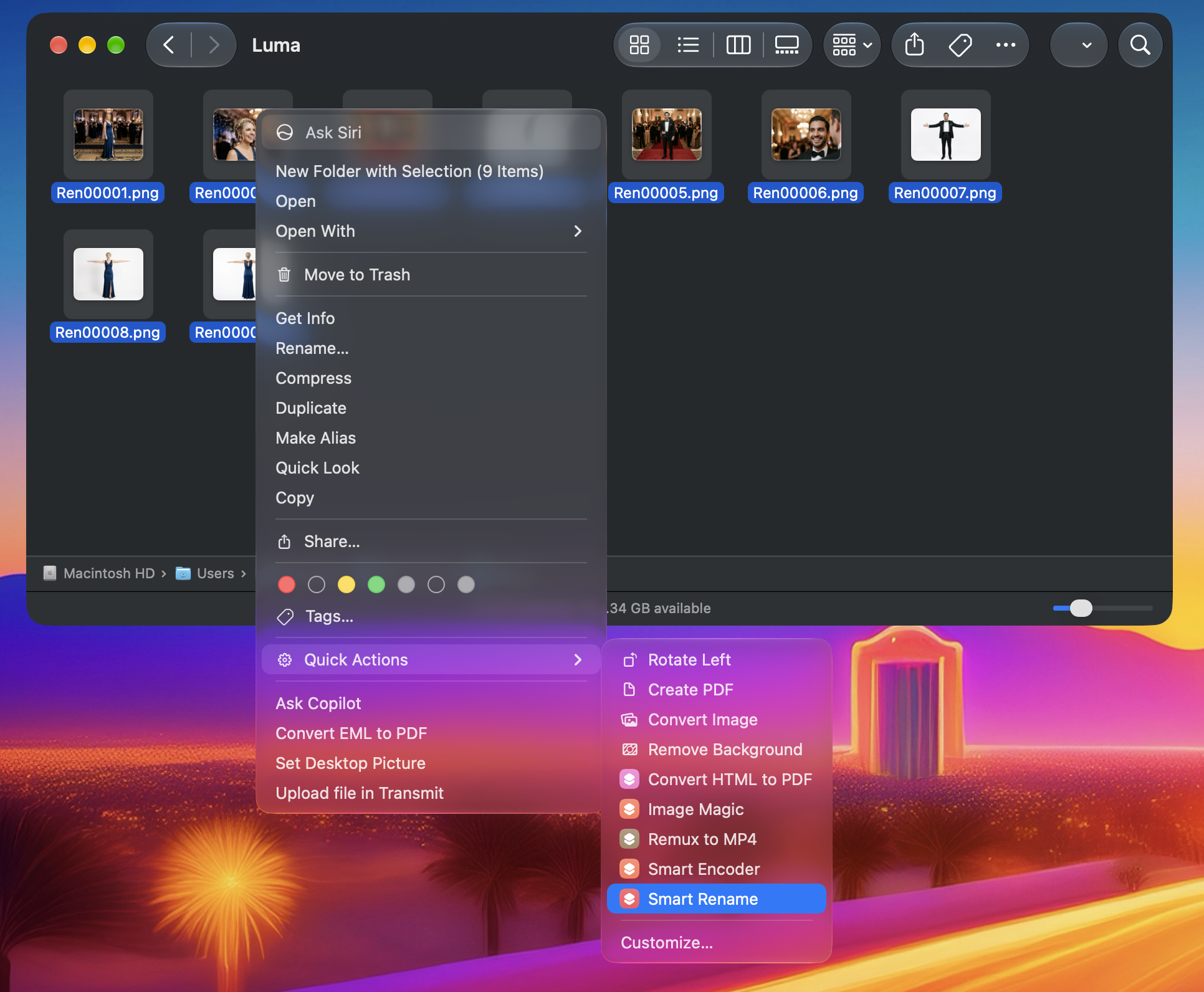
To set it up:
- Open the Apple Shortcuts app and double-click the shortcut to open it in the editor.
- Click the Shortcut Details button (the ⓘ icon) in the toolbar to open the details panel.
- Turn on Use as Quick Action.
- Check Finder. You can leave the other options unchecked.
- Close the editor. The shortcut is saved automatically.
Now go to Finder, select some images, right-click, and look under Quick Actions. Your shortcut will be in the list.
If it doesn’t show up, choose Customize… at the bottom of the Quick Actions menu (you can see it in the screenshot) and make sure the shortcut is checked. You can also look in System Settings under the Finder extensions list and confirm the shortcut is enabled there.
How to use it
- In Finder, select the image files you want to rename.
- Right-click and choose Quick Actions and then your shortcut. You can also run it from the Apple Shortcuts app, the menu bar, or wherever you’ve pinned it.
- Wait a few seconds per image. The model works through them one at a time.
- Check the summary at the end, then look at your folder.
How it works
The Apple Shortcut is two actions: Get Selected Files in Finder and Run AppleScript. The AppleScript calls fm like this:
fm respond --no-stream --image "/path/to/image.png" --text "Describe this image in 3 to 6 words. Reply with only the description, no punctuation."It cleans up the response and then uses Finder to rename the file. To change the style of the names, edit the prompt inside the Run AppleScript action. For example, you could ask for a longer description, or one that starts with the main subject.
Tips and caveats
- Try a copy first. Descriptions come from a small on-device model, so they won’t always be accurate. Test on a few files before running it on a whole folder.
- Only images. The Apple Shortcut is built for image files. Other file types will most likely fail or get meaningless names.
- Renaming has no undo in the Apple Shortcut. If you want to go back, use Finder’s Edit → Undo Rename right after running it, or keep a backup.