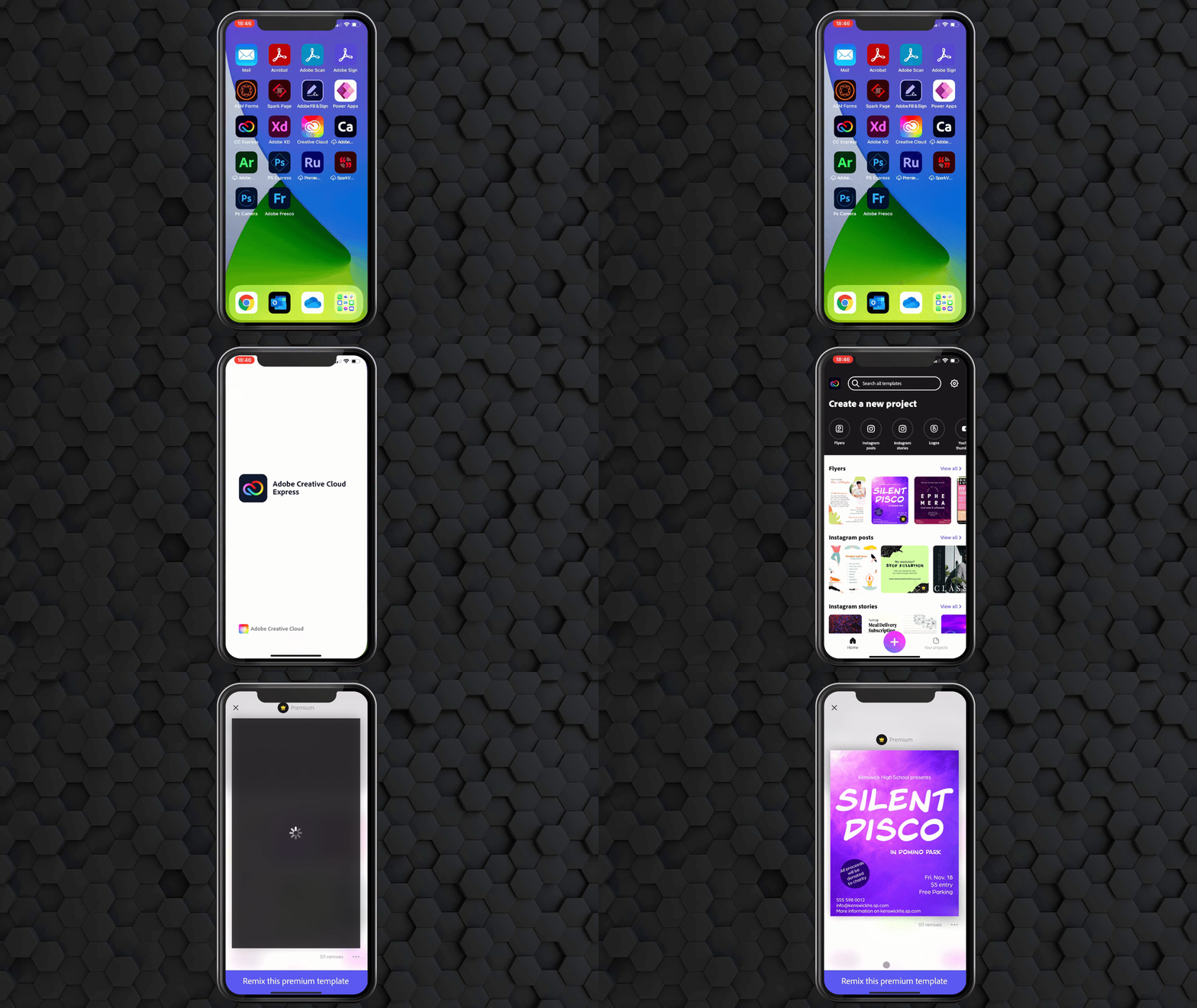
Have you ever wanted to show taps when presenting the screen of your iPhone or iPad? As part of my job, I often need to do demos on an iPhone or iPad to showcase how apps work on mobile devices. I use tools like QuickTime Player or Reflector to share the screen of my iPhone or iPad on my computer. These work really well to share a screen. However, one thing these do not show very well is where you are tapping. This means that it can be really hard to highlight where people need to tap.
Fortunately, iOS 14 added a handy feature that makes it easier to highlight exactly where someone needs to tap thanks to the Accessibility features that were added and Apple’s extended support for mice in iPadOS. In this article, we’ll walk through how you can show taps when sharing an iPhone screen during a demo using these Accessibility features.
What you will need
There are a few things that you will need in order to use this:
- iPhone or iPad running iOS 14 or greater
- Bluetooth mouse
How to show taps on iPhone screen
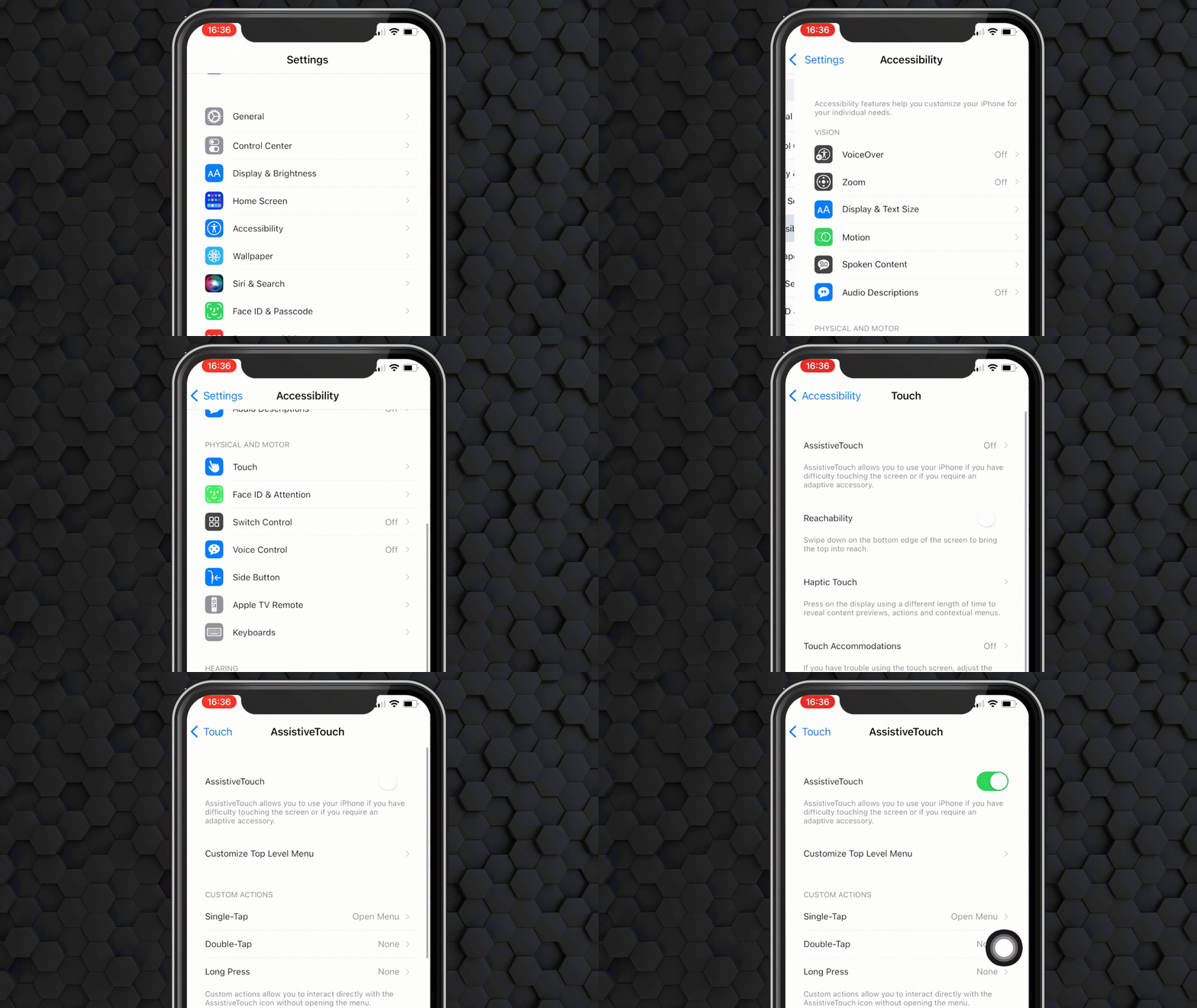
Enable AssistiveTouch
Enable AssistiveTouch in iOS Settings.
- Go to Settings.
- Select Accessibility > Touch > AssistiveTouch.
- Enable AssistiveTouch.
The purpose of AssistiveTouch is so that people with disabilities can use accessibility devices to use an iOS device, particularly if tapping a screen can be problematic. These devices allow you to use a pointing device like a mouse to navigate a screen, so we are going to enable that.
Pair a Bluetooth Mouse
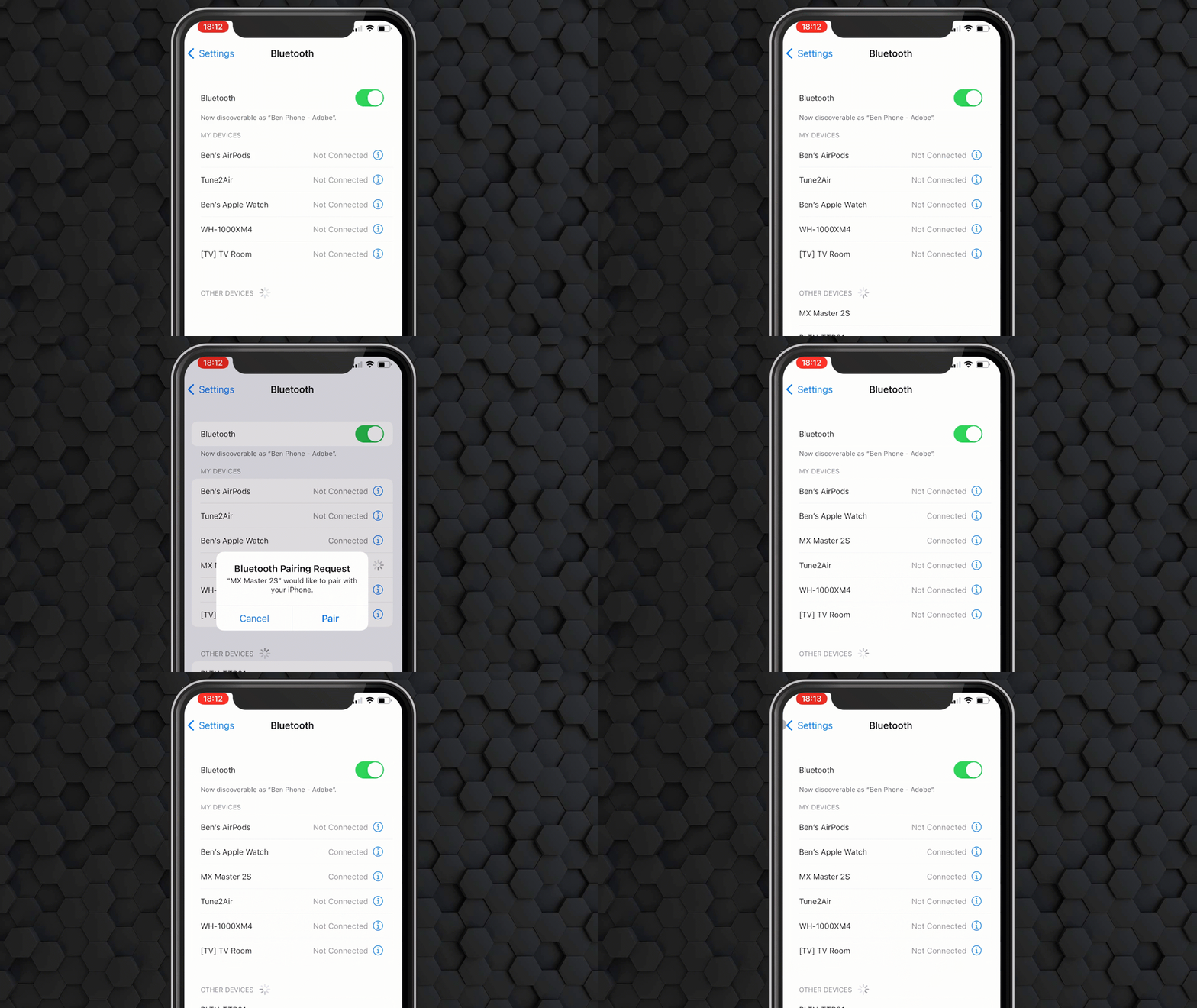
Go to Settings > Bluetooth to pair your iPhone with a mouse.
- Go to Settings.
- Click on Bluetooth.
- Set your mouse to Bluetooth pairing mode.
- Select your mouse under Other Devices and tap Pair.
Now that you have paired your mouse, you should see a dot on your screen which allows you to navigate. This allows you to navigate and show where you are “tapping” on the screen.
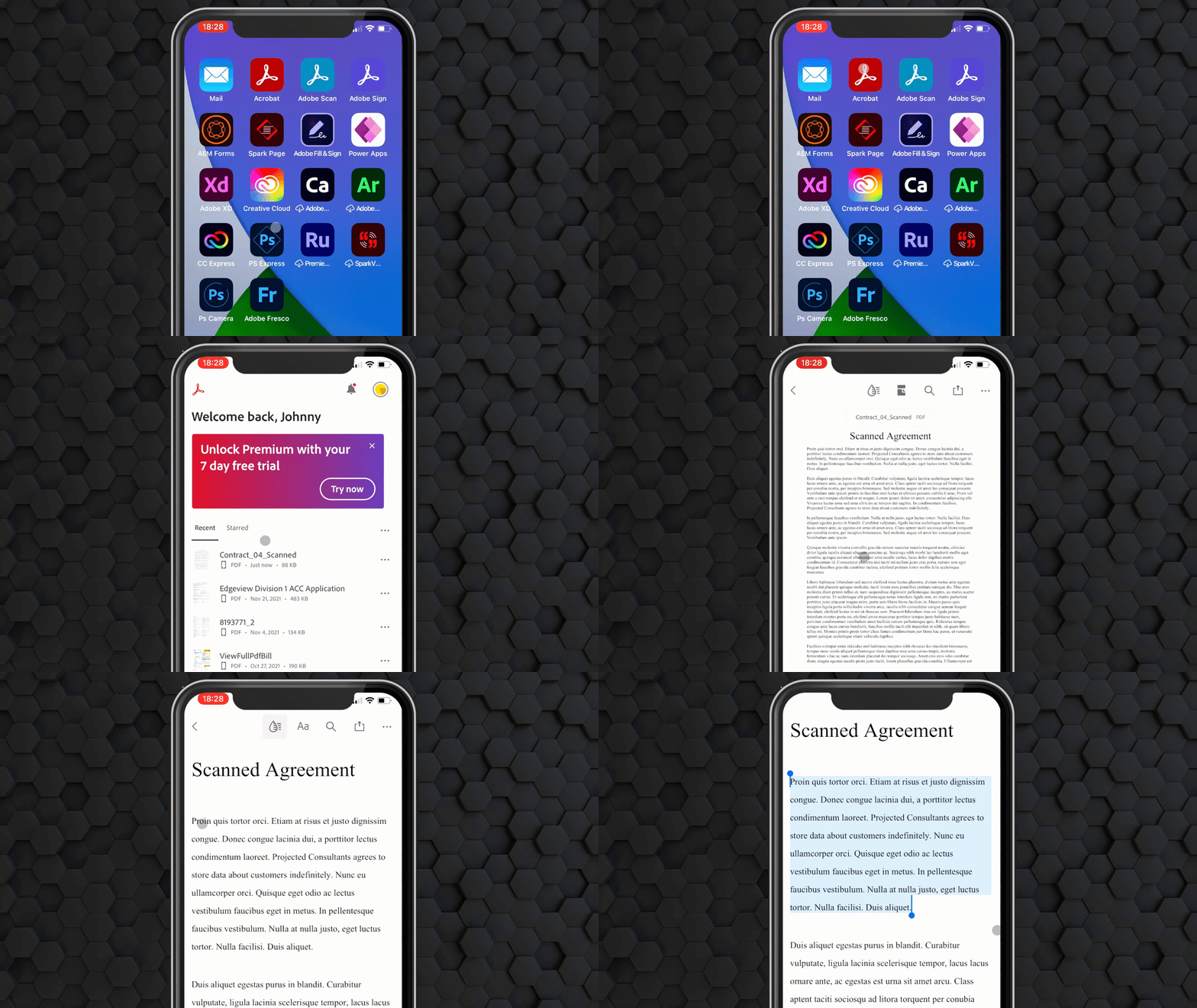
Using AssistiveTouch with iOS allows you to use a cursor to clearly show where you want to “tap” on screen while sharing your screen.
Bonus: Set up your other mouse buttons
Along with being able to use your mouse on your iPhone or iPad, you can also configure your other buttons to perform different actions. Some popular ones that I like are:
- Click the home button
- Secondary click
- App Switcher
- Spotlight
- Screenshot
One of the other really cool things is you can also configure a button to trigger Shortcuts in iOS. For those who are not familiar, Shortcuts are little mini workflows that allow you to automate different actions within iOS. This can help automate things like phone calls, text messages, and more. With AssistiveTouch, you can trigger this with a click of a button. This is really handy during a demo because you can use it to trigger an email notification or something else to make your demo look more real-time.
Final thoughts
For years I have been wishing that there was a way to show where I am tapping on the phone like I have a cursor on a desktop. Some apps like Adobe Lightroom on iOS and Workday include tools to show taps on screen. Using AssistiveTouch makes recording demos of mobile devices much easier and helps them go more smoothly during a live demo.
Do you find this will help up your demo game? Also check out my recent article on how you can add live cartoons to your livestreams using Adobe Character Animator and OBS.