
Ever have your boss send you a text to ask for an update instead of looking it up themselves? As it relates to Adobe Acrobat Sign, this is often my manager asking “Hey, do we have any updates on the contract?”

To reply to this, I would have to log into Adobe Acrobat Sign to check whether a person has signed the contract yet and then reply to the message.
With Adobe Acrobat Sign for Microsoft Teams, there is a much easier way to reply. When you add the Adobe Acrobat Sign App in Microsoft Team, you can add the Adobe Acrobat Sign bot to your channel and check the status right in the context of the conversation. This eliminates a whole bunch of clicks and steps to answer you manager.
What You Need
- Adobe Acrobat Sign
- Adobe Acrobat Sign for Microsoft Teams
- Microsoft Teams
- Microsoft Power Automate
Installation Notes
In order for the Adobe Acrobat Sign bot to work within a channel, you will need to add it to your channel during installation.
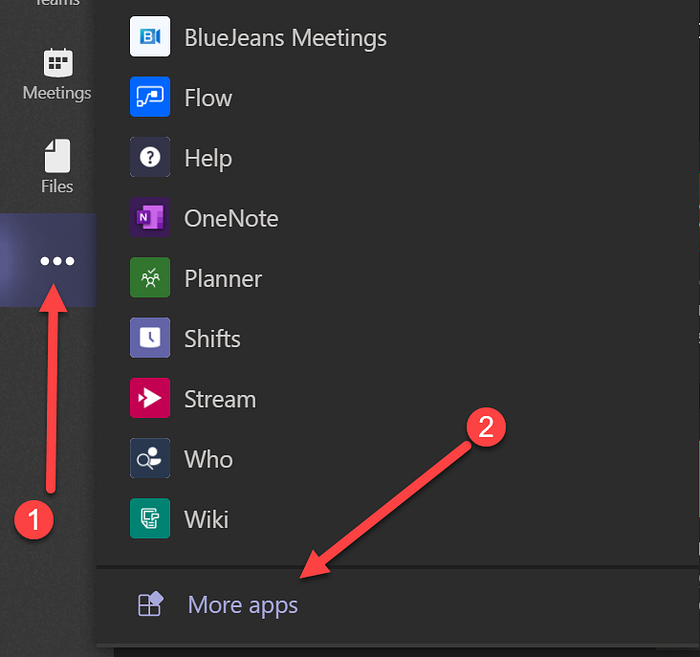
Within Microsoft Teams, click the Ellipsis … menu on the left sidebar and select More apps.
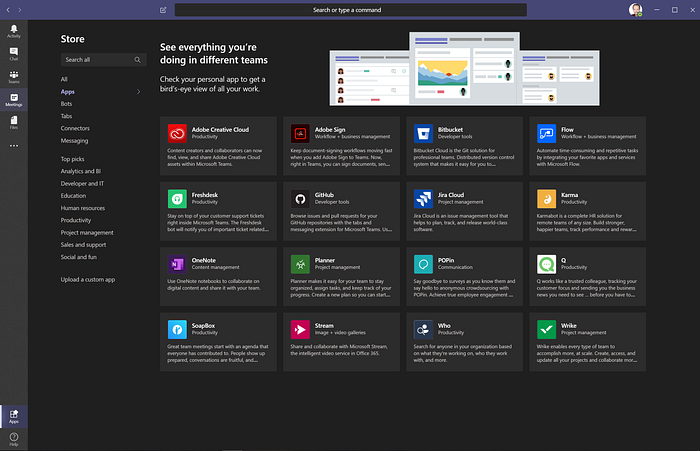
In the Store, you will see Adobe Acrobat Sign and Adobe Creative Cloud listed. You can also install from App Source.
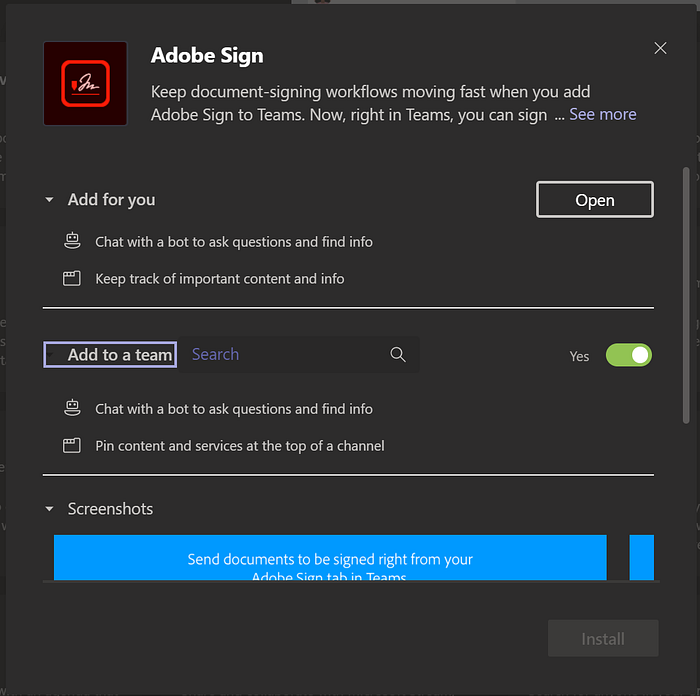
You can then choose to install Adobe Acrobat Sign for yourself individually or a specific channel.
Getting Update on Agreements (from Channel)
To get the update on an agreement from within a channel, you can look up that information by typing:
Get Ben Vanderberg’s stories in your inbox
Join Medium for free to get updates from this writer.
Remember me for faster sign in
@Adobe Adobe Sign check status
Adobe Acrobat Sign will reply “What is the name of the document you are checking on?”
Then, you can reply with the name of the agreement:
@Adobe Acrobat Sign Catering Contract
Adobe Acrobat Sign will reply with an update on that document:
For more information on the integration, see the docs here.
Push Notifications to Microsoft Teams Using Microsoft Power Automate
If you want to have a bit more tailored notifications into your Channels, such as when agreements are signed, viewed, etc., you can send that notification to Microsoft Teams using Microsoft Power Automate, formerly Microsoft Flow.
To make this easy to set this up, you can use the Microsoft Power Automate template to send a Microsoft Teams message when an agreement is signed here.
UPDATE (2/19/2020): Updated article to reflect Microsoft Flow brand is now changed to Microsoft Power Automate.
Follow the Adobe Tech Blog for more developer stories and resources, and check out Adobe Developers on Twitter for the latest news and developer products.