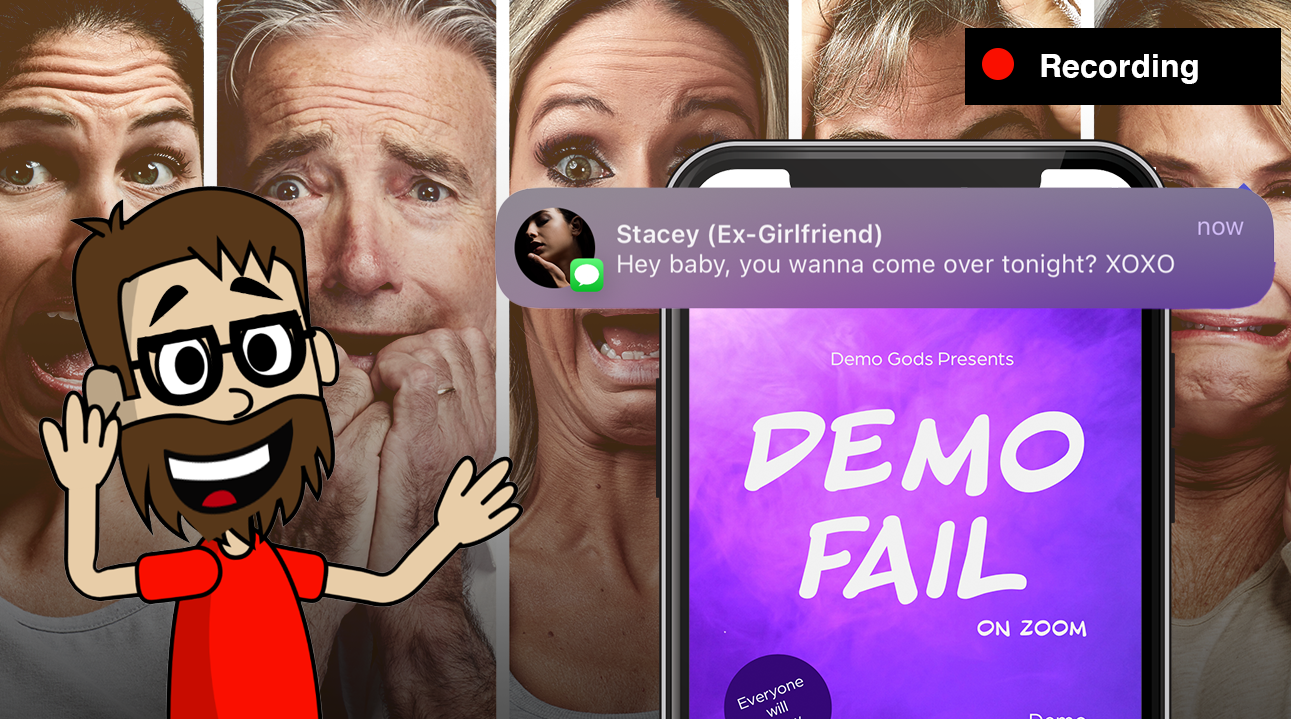
When doing live demos on customer calls or meetings, there are lots of things that can make things awkward really quickly. One of those is getting text message notifications in the middle of your demo. If you’re lucky, it’s your boss saying “wrap this up, I’m bored” in front of everyone. On a terrible day, your ex is texting you, and you start hearing snickers in the audience as they react to the text message they weren’t meant to see. Either way, unintended notifications can get awkward really quickly.
But you don’t even have to go that far. We have photos of family and you don’t want to have pictures of your kids or family visible, or people skimming through all the different apps that you use when doing a demo. You often want to clean things up on your phone so people see what they need to see and nothing else.
Fortunately, there is now a new feature in iOS 15 that makes it much easier to create a “demo mode” and clear all those distractions. The feature, called Focus Mode, allows you to set which notifications are shown and which apps you want to enable notifications for. Focus Mode was designed to help people focus on only certain types of apps and filter out the work apps, home apps, and so on. However, this feature becomes really handy when doing demos on your phone.
In this article, I’ll walk through how you can make a “demo mode” on your iOS device so that you never have an awkward moment during a demo again.
What you are going to need
To use this, you need an iPhone or iPad running iOS 15.
How to set it up
Create a new Focus mode
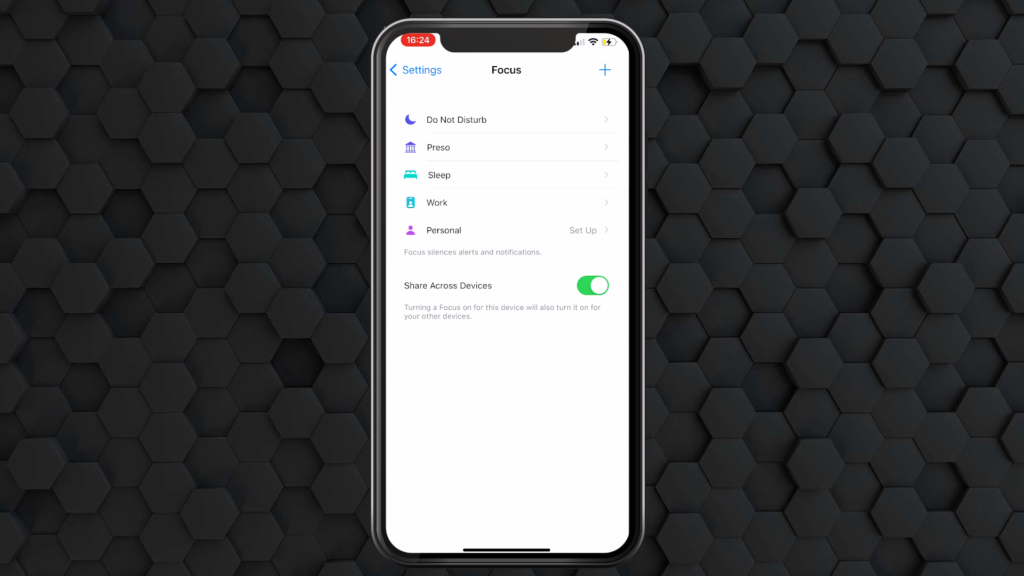
- On your device, go to Settings > Focus.
- Tap the + symbol.
- Tap Custom.
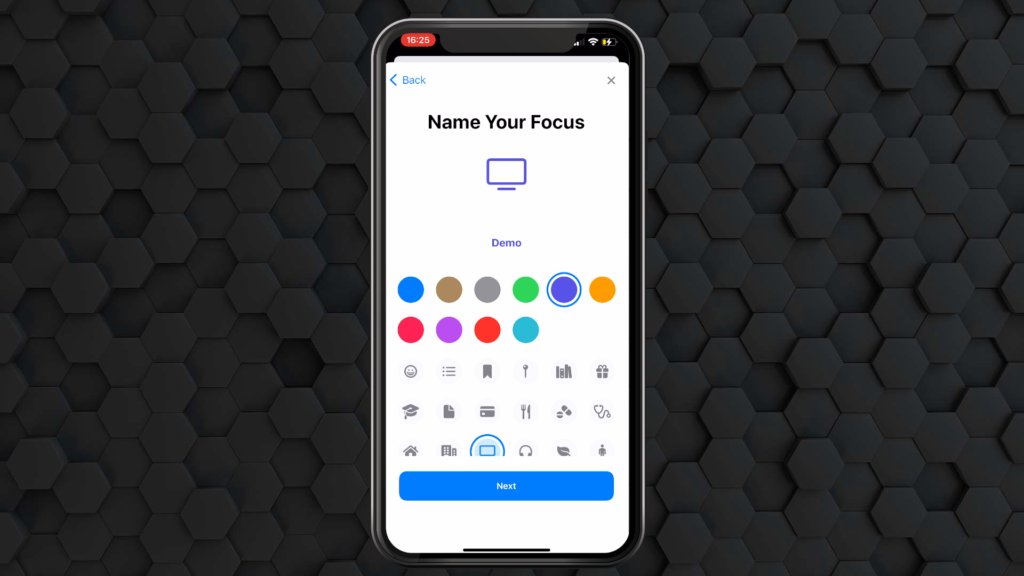
- Set the name of your focus mode — for example, “Demo”.
- Set your color and icon.
- Tap Next.
Set Allowed People for Notifications
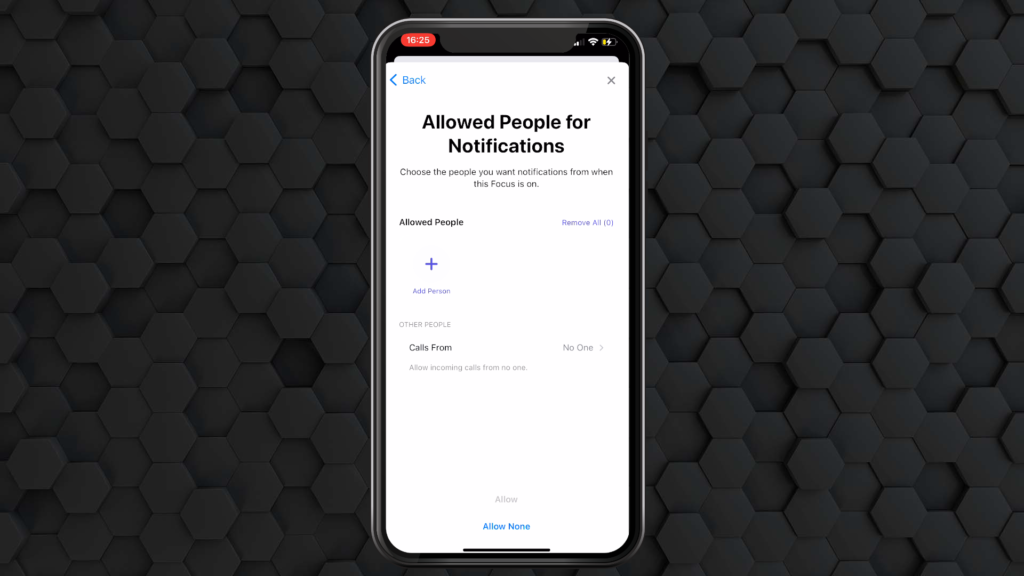
Normally during a demo, I don’t want any text messages or phone calls from people. If I do, it’s usually from a specific person because that is part of my demo. With Focus mode, you can explicitly set which people can contact you while your Demo focus mode is on. Once you have specified who can send you notifications or call you, tap Allow or Allow None.
Allowed Apps for Notifications
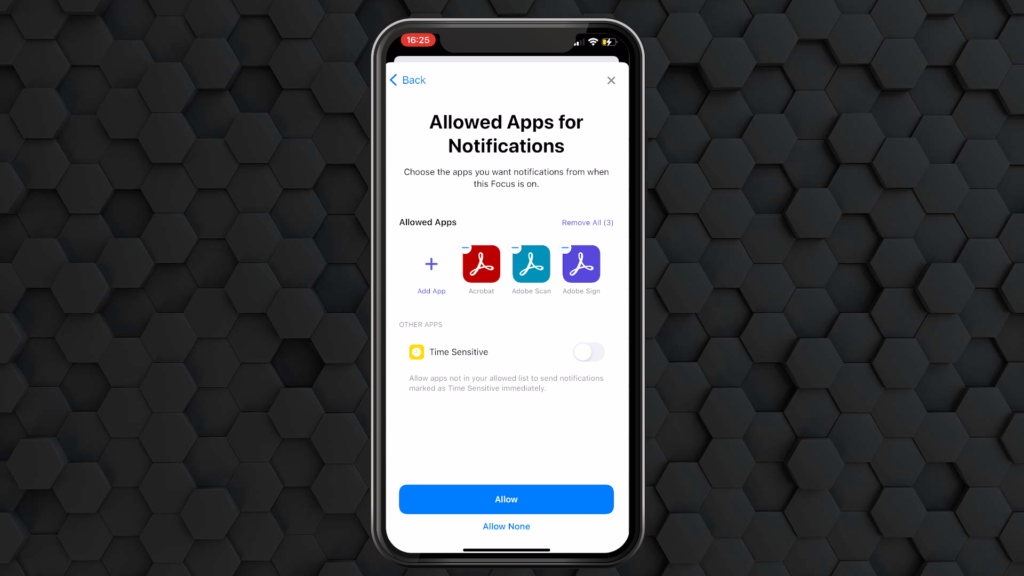
Sometimes notifications can get noisy — breaking news alerts, for example. Before Focus mode, I would go into my settings and manually shut off notifications for each app to ensure I don’t get a rogue notification during a demo, but that is tedious. Fortunately, with Focus mode, you can specify exactly which apps are allowed to provide notifications.
For example, if I am doing a demo with a fictional app like AppX, I can add just that app to the Allowed Apps list.
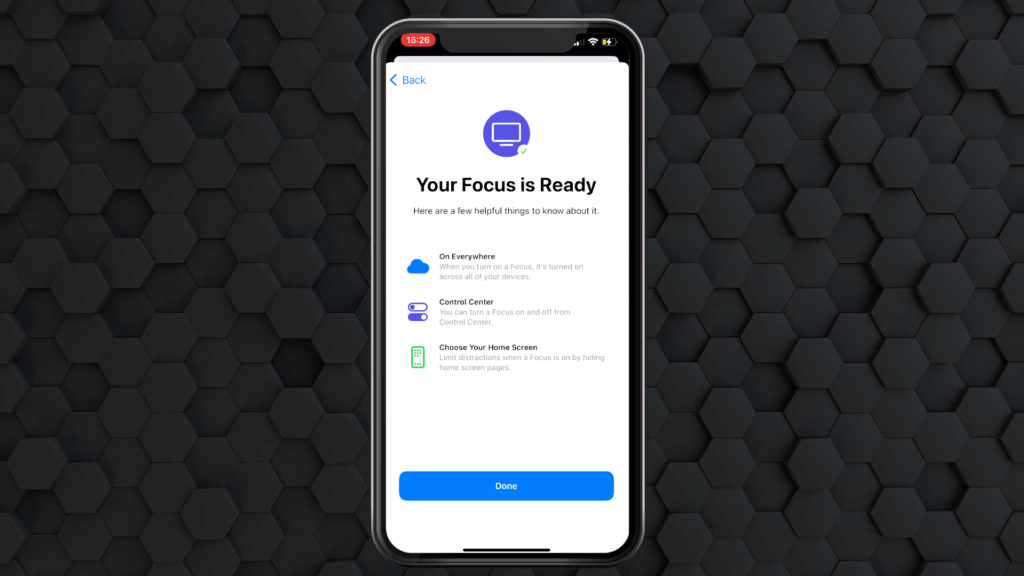
Once you set those, your Focus is ready — tap Done.
Set a Custom Home Screen
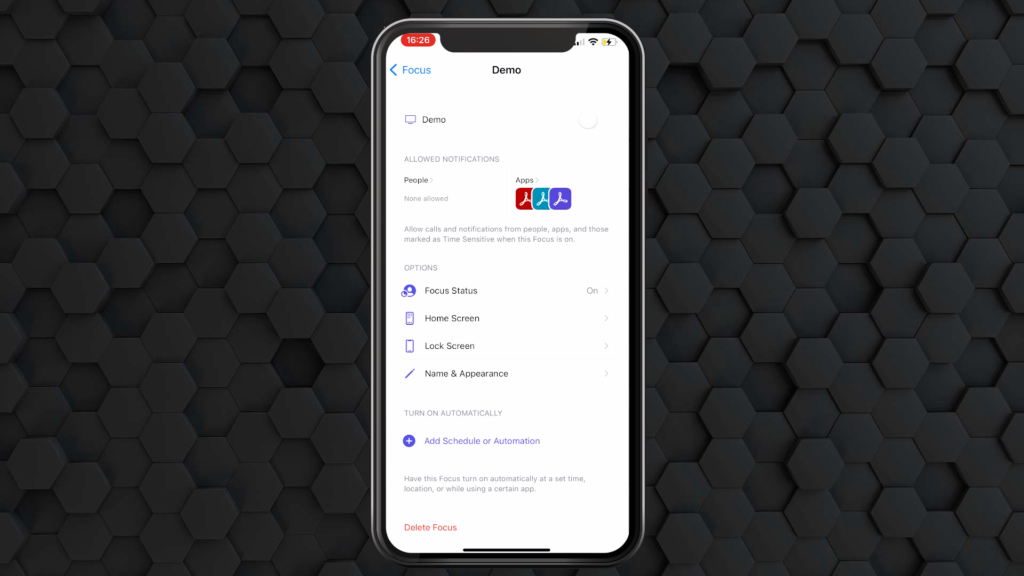
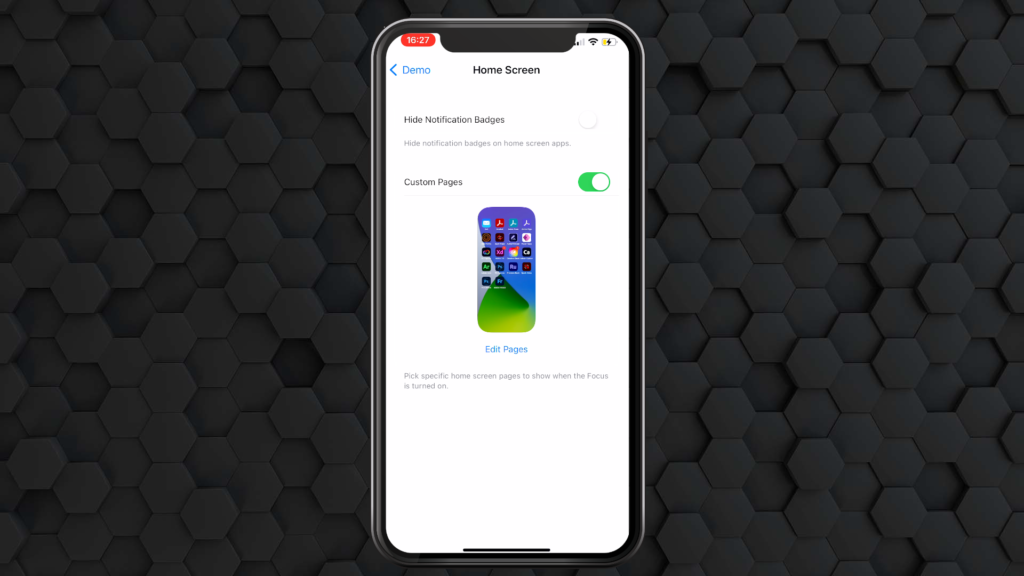
To keep the focus on the apps that matter, you can set a specific Home screen to show so that people do not see all of the apps installed on your phone during a demo. To do this, first create a new Home Screen page and add the apps you want to appear there. In iOS 15, an app can live on multiple Home screens, so you can add demo-relevant apps without removing them from your everyday screens.
You can then specify which Home screen(s) are visible during Demo mode within your Focus settings.
- When editing your Focus mode, tap Home Screen.
- Enable Custom Pages.
- Choose which Home Screen(s) you want enabled.
- Tap Done.
How to enable your new Focus mode
Whenever you need to start a demo, enabling your Focus mode takes just a few seconds:
- Open Control Center (on iPhone X or later, swipe down from the top-right corner).
- Tap the Focus button.
- Choose your Demo focus mode.
- Swipe up to leave Control Center.
That’s it! Now you can do your demo with zero distractions. You don’t have to worry about any awkward moments, and you are in complete control.
Final thoughts
In an ideal world, you have a separate device for demos from the one you use every day. In practice, though, that often isn’t financially viable — phones are expensive. Fortunately, iOS 14 and iOS 15 added many handy features that make demos on iOS devices much smoother. For example, you can also show a cursor on an iPhone to highlight exactly where you are tapping. Together, these features ensure you have a successful demo free of distraction and humiliation.